
Perform Inspections
Follow the schedule's inspection method to answer a checklist, record environment readings or submit stock movements. Record actual conditions and report issues when needed.
| Method | What to do |
|---|---|
| Checklist | Follow this guide to answer questions and attach photos. |
| Environment measurement | Enter readings using Environment inspections. |
| Inventory management | Submit stock movements or a no-change check using Inventory inspections. |
Tasks use a checklist. Environment and inventory submissions require a connection.
Start the inspection
- Select your work on Home.
- For an inspection, scan that facility's NFC pad as instructed. Tasks do not require NFC verification.
- Check the work name and facility on the input screen for the assigned method. For checklist inspections, follow the steps below.
Inspections started from a schedule detail also require facility verification. If you scan another facility or an unregistered pad, follow the message and retry with the correct pad.
Read handover information first
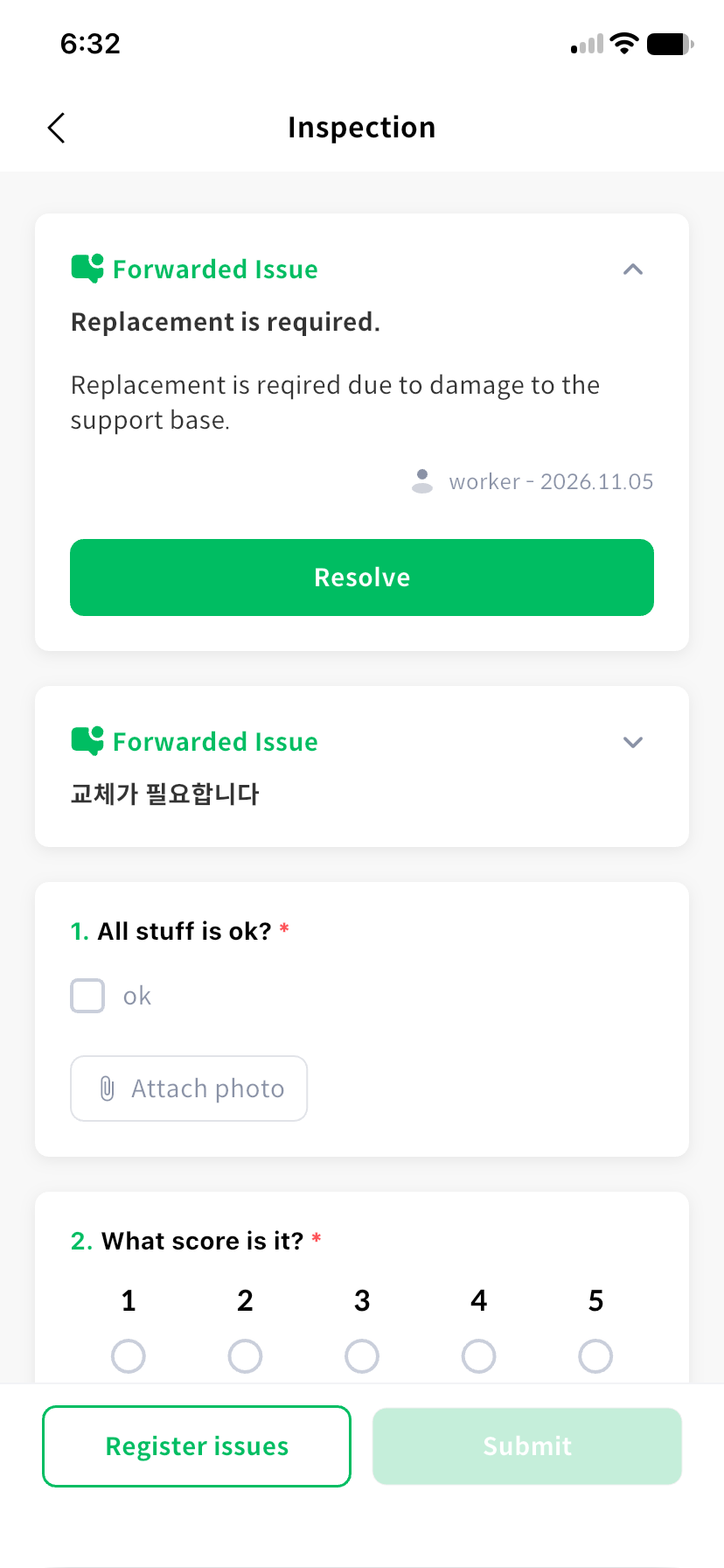
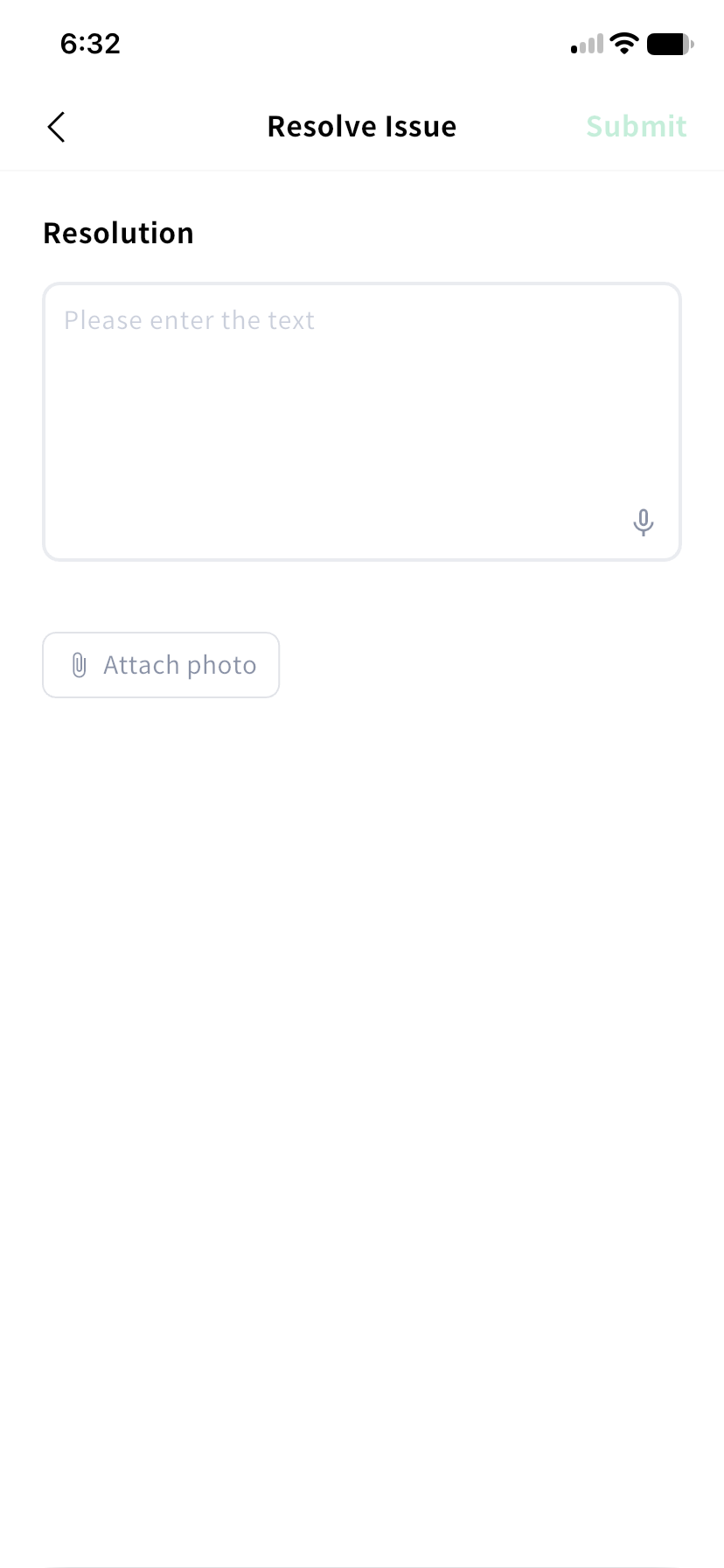
If a handed-over issue appears at the top, expand the card to read its description and photos. If you resolve it on site, use Resolve to record what you did. Review existing problems before starting this inspection.
Answer the questions
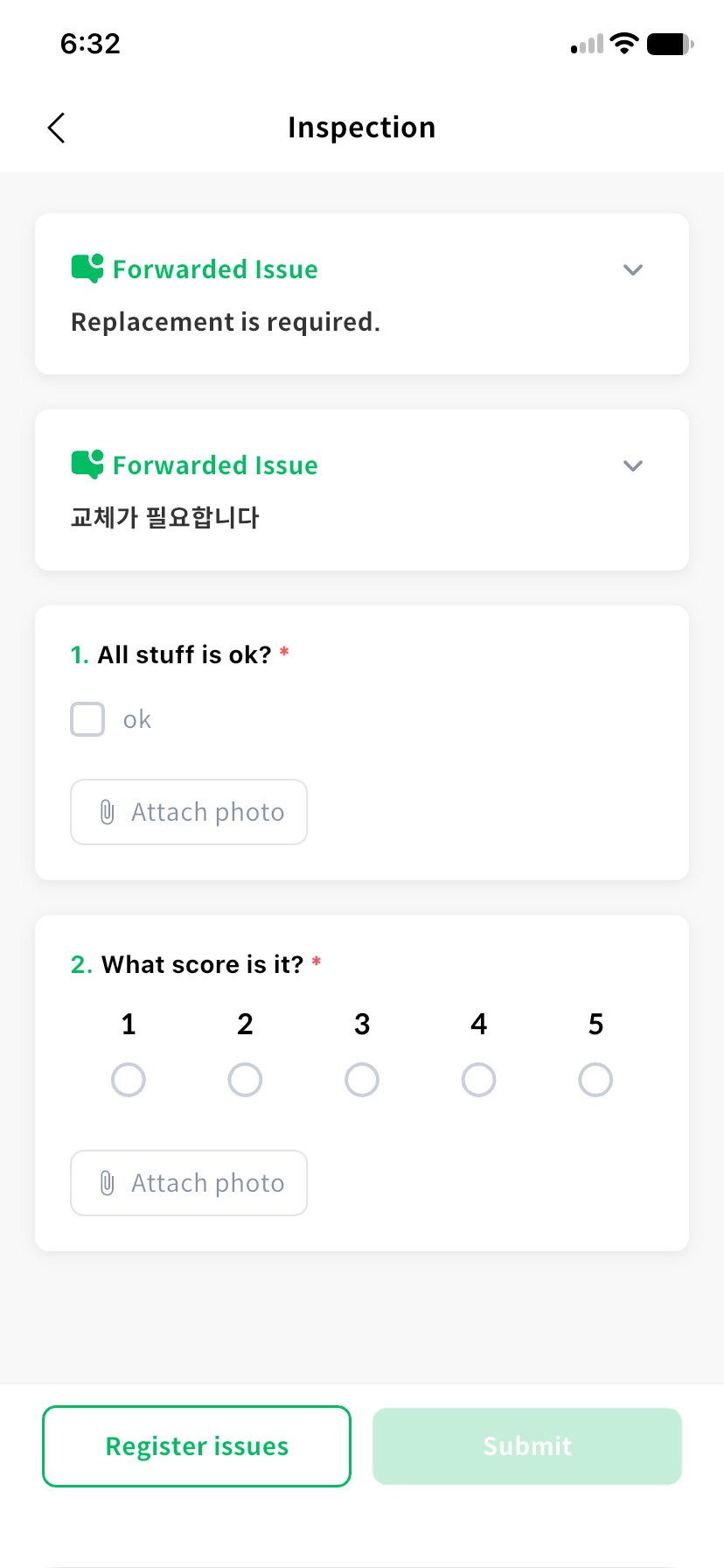
Read the Inspection guide and example photos when provided. Questions marked with an asterisk and required photos must be completed before submission.
| Question | How to answer |
|---|---|
| Check or O/X | Select the answer matching the condition you checked. |
| Single choice | Select one option. |
| Multiple choice | Select all applicable options. |
| Text | Enter observations or details. |
| Score | Enter a score within the specified range. |
| Numeric range | Enter the actual measurement and compare it with the normal range. |
Do not change a measurement to fit the displayed limits. Record the actual value even when it is outside the normal range, then check whether action is needed.
Attach photos
Choose the camera or gallery from the question's photo controls. You can attach up to five photos per question. Check whether photos are required. Remove an incorrect photo before choosing a replacement.
Use voice input
Tap the microphone in a text field and speak. Allow microphone and speech recognition permissions when prompted. Review the recognized text and correct any errors. Type directly if recognition fails or the device does not support it.
Get a value from a photo
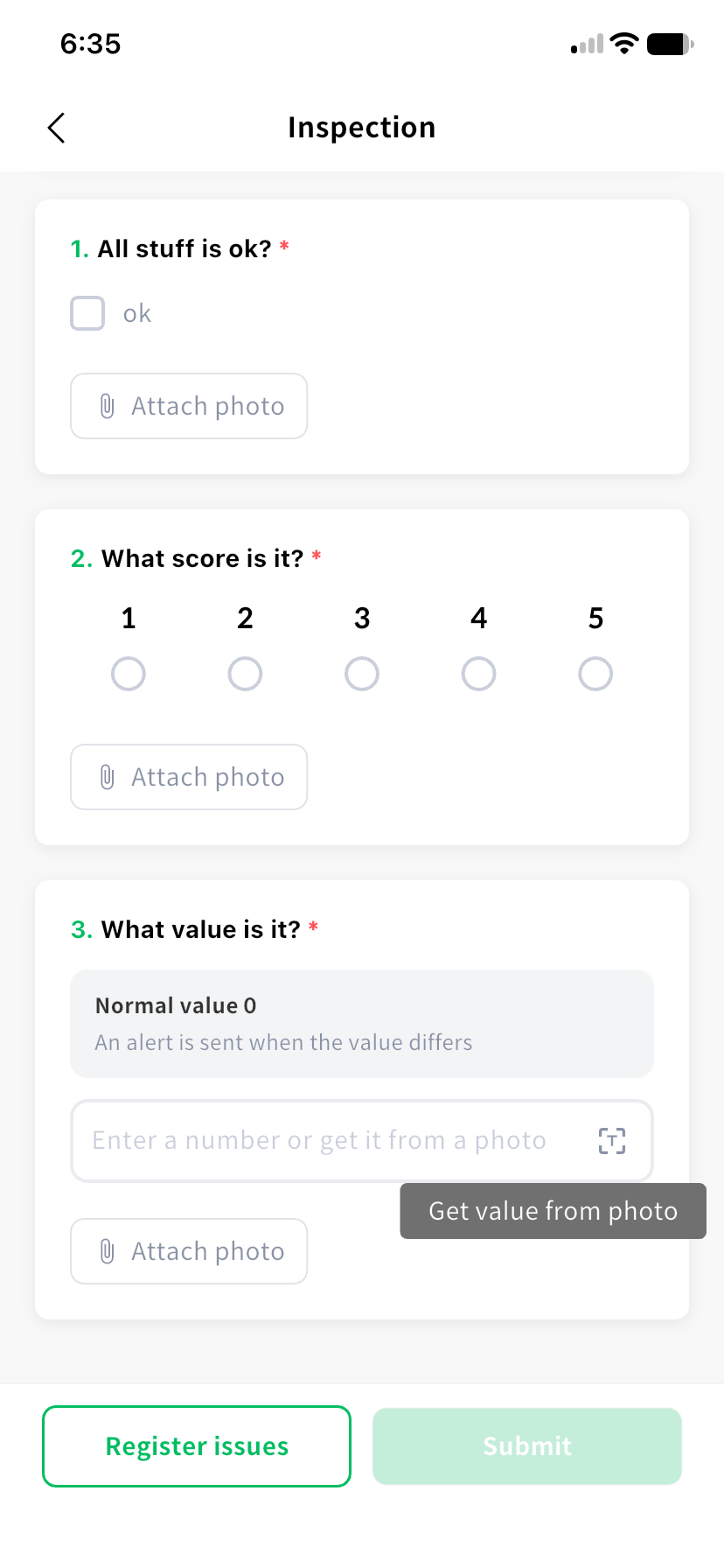
Text and numeric range questions configured for photo extraction display a Get value from photo button.
- Tap the button and select the camera or gallery.
- Wait while the photo is attached and its value is read.
- Compare the entered value with the actual meter or document, and correct it if needed.
Extracted values are suggestions that need your review. Enter the value manually if extraction fails or you are offline. Wait for extraction to finish before submitting.
Report a new issue
If you find a problem during an inspection, select Report issue at the bottom. Check the title, facility, and description, then attach photos. Enable Hand over to the next inspector when needed. See Issues for details.
Reporting an issue and submitting inspection results are separate actions. Return to the questions and submit the inspection after reporting the issue.
Submit the result
Review your answers and required photos, then select Submit. On the result screen, check the work name, worker, time, and answers.
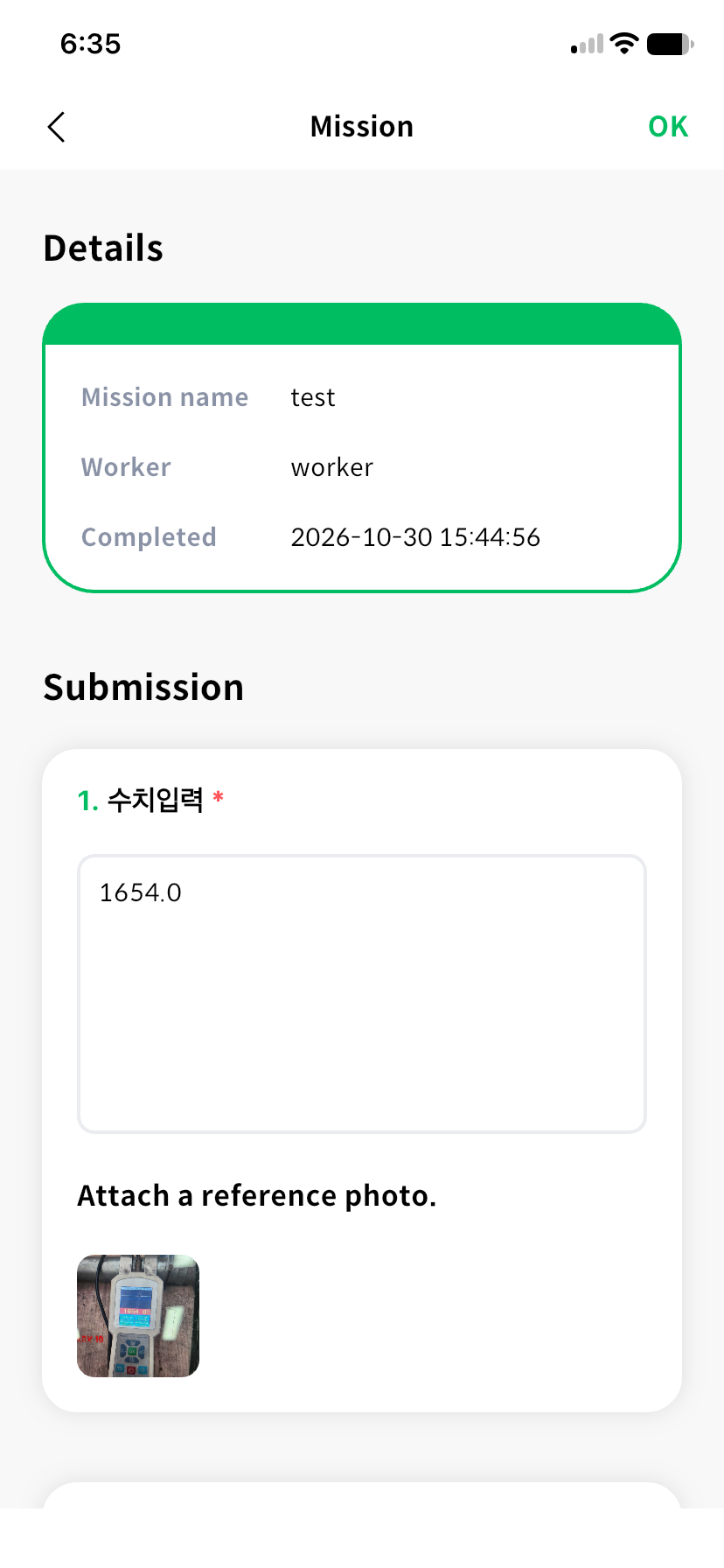
If submission is unavailable, check required answers, required photos, and numeric formatting. Leaving the screen can discard your input; read the exit message. A result saved temporarily after a network failure has not yet been transmitted. Follow Offline work until transmission is complete.