
Inspection Facilities
Check registered pads, then use inspections and additional features at an NFC-verified facility. To complete assigned environment or inventory work, start from its schedule rather than the facility feature card.
Check facility and pad information
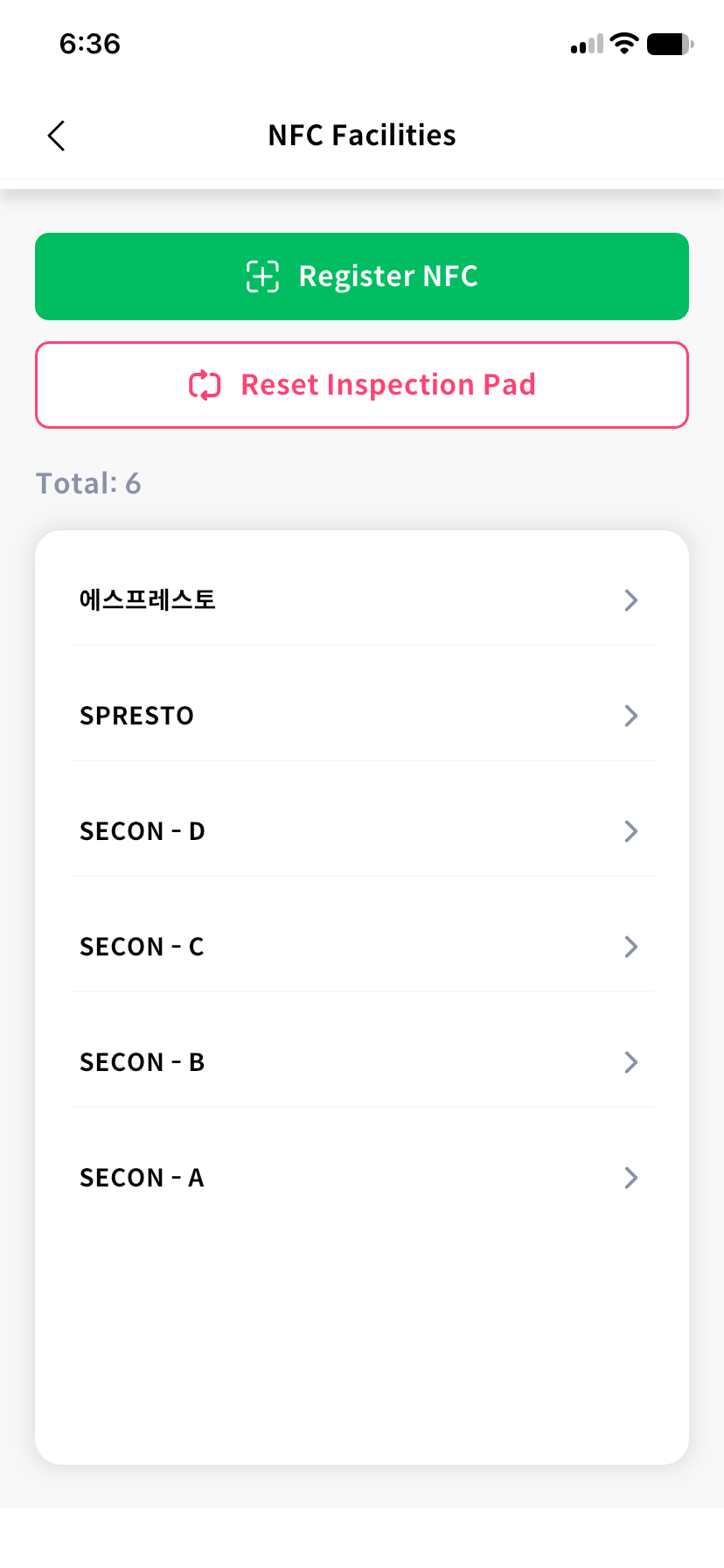
Open Menu > NFCs and select a facility. Check its name, most recent inspection time, number of pads, and pad names. For pad installation and reuse, see NFC registration and reset.
Work at a scanned facility
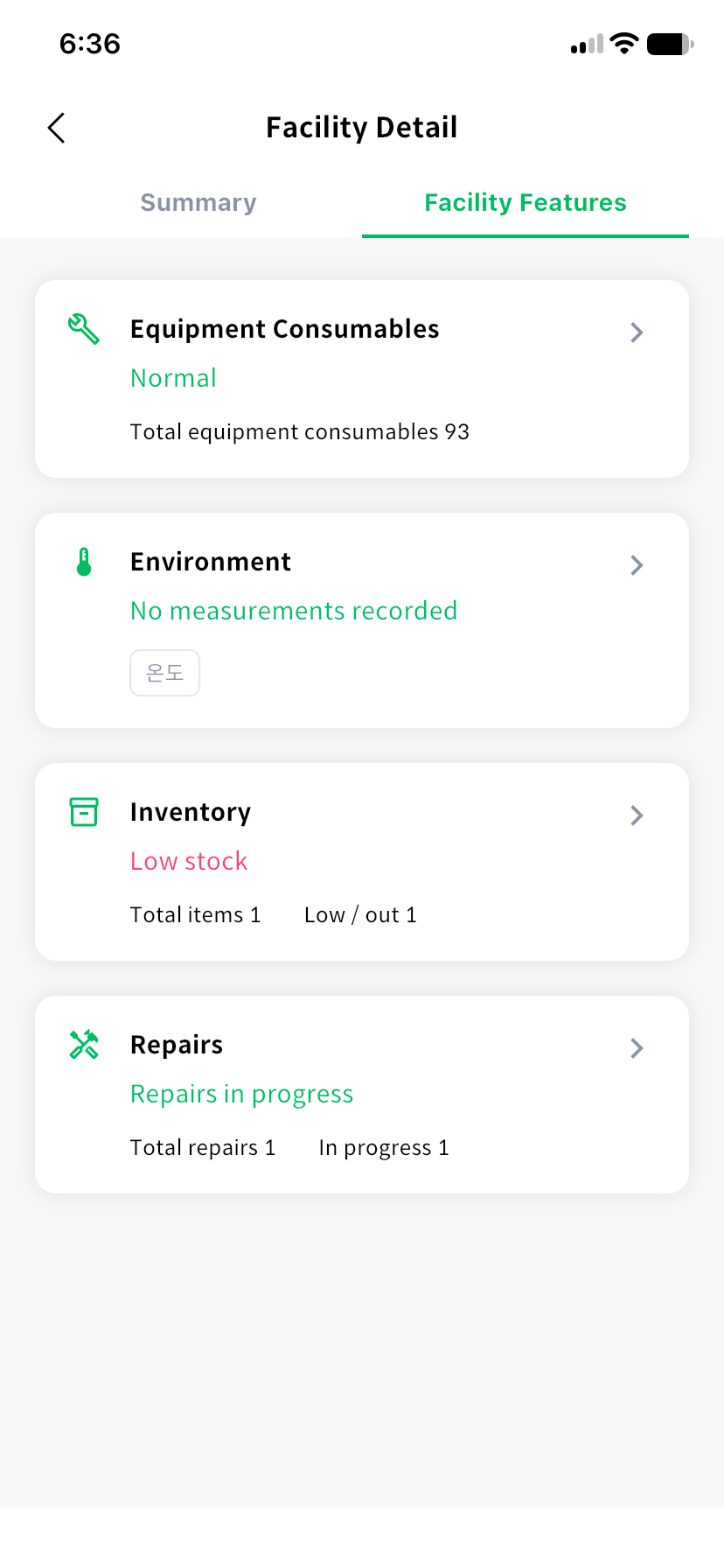
Use the floating Scan button to read a facility pad. Review the facility and linked schedules, then select an available inspection.
Cards appear for enabled Equipment consumables, Environment, Inventory, and Repairs features. Check warnings or shortage counts and open the relevant card. If no features are enabled, ask an administrator to check the facility settings.
Record consumable usage and replacement
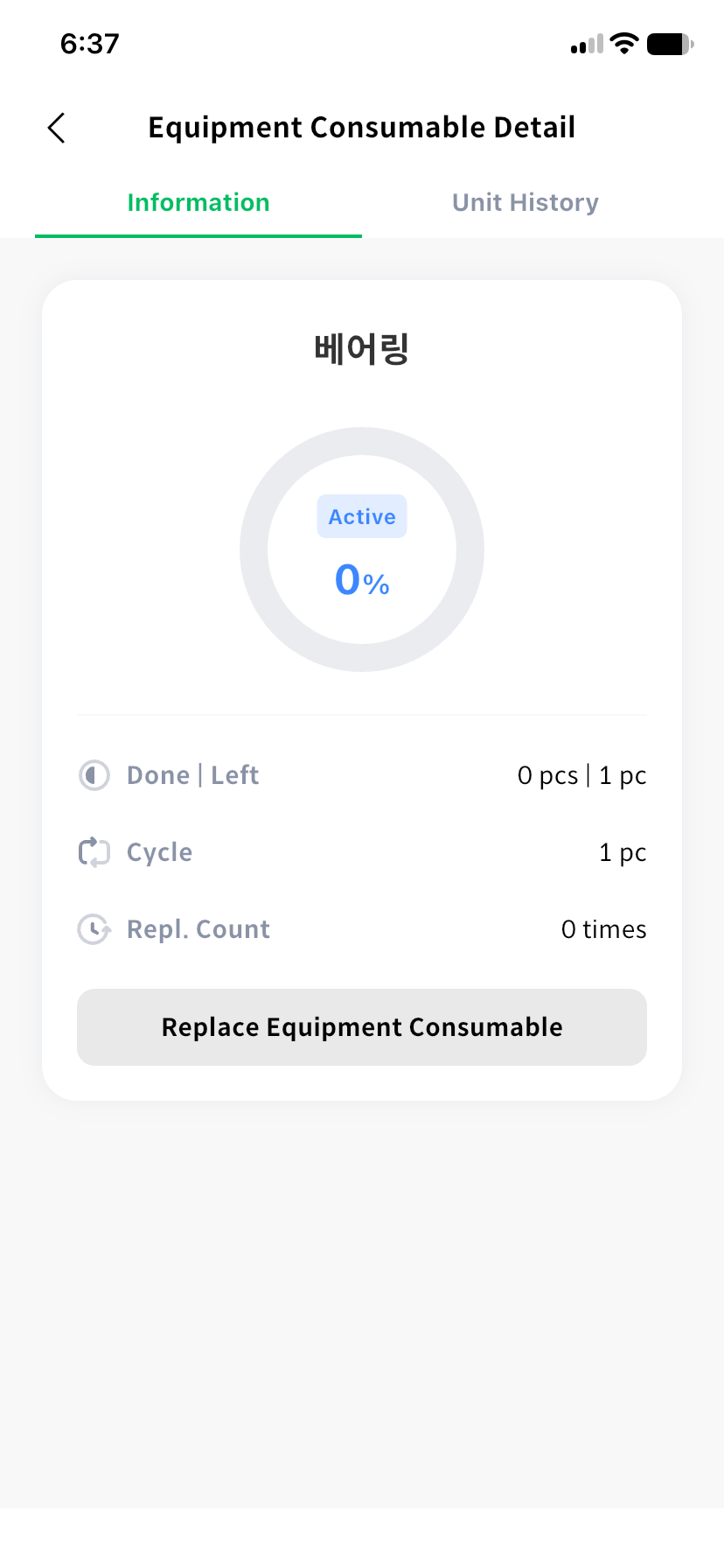
Open Equipment consumables to check usage and remaining capacity. To register usage, select the affected consumables or select all, then enter the actual usage count.
Select a consumable to see its replacement cycle, total replacements, and usage history. After physically replacing it, select Register replacement, review the current usage, and confirm.
Register environmental measurements
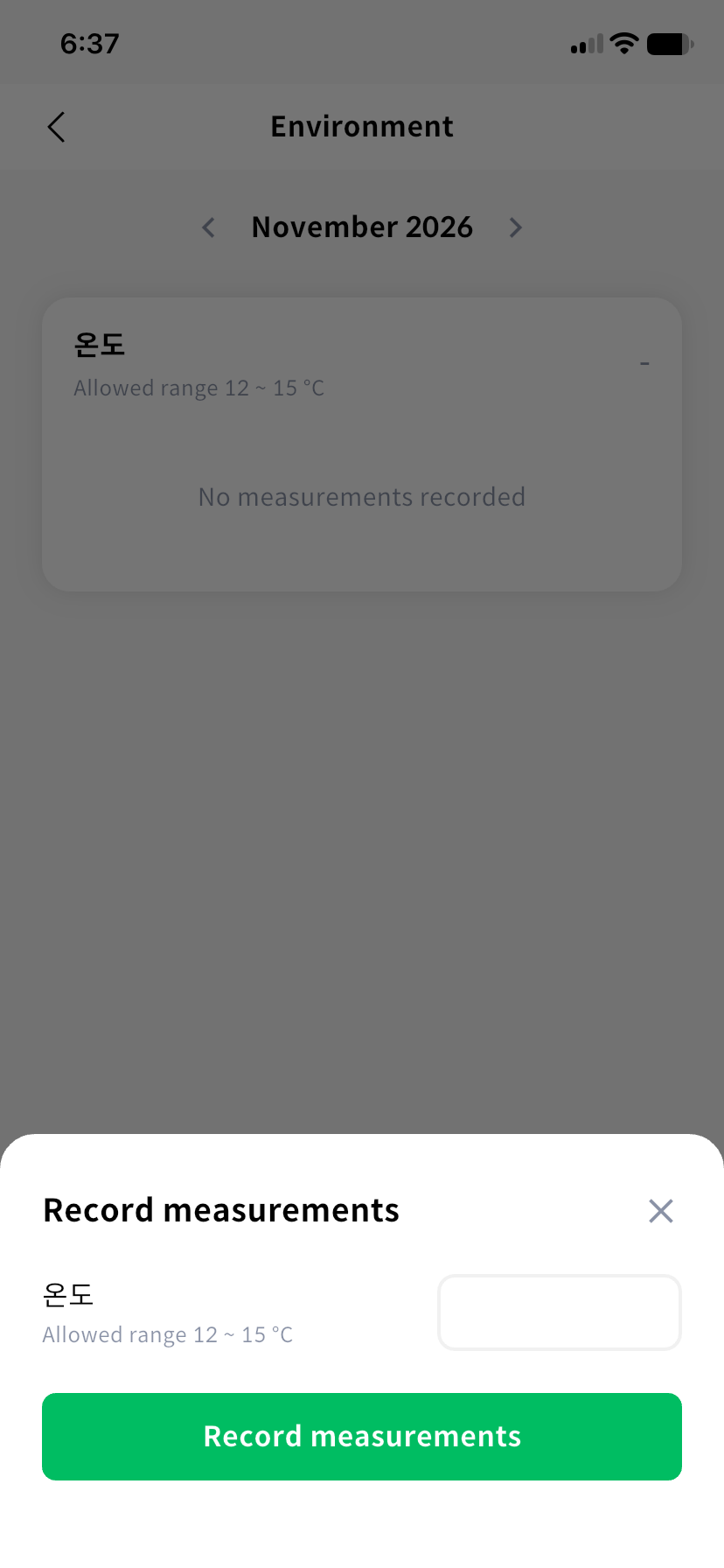
Open Environment and choose an item and month. Review the last measurement and time, allowed range, monthly trend, and out-of-range count. The last measurement of a previous month may differ from current conditions.
Select Record measurements, enter values for the items measured, and register them. You can leave unmeasured items blank, but at least one valid numeric value is needed. Record actual measurements even when outside the allowed range.
Check stock shortages
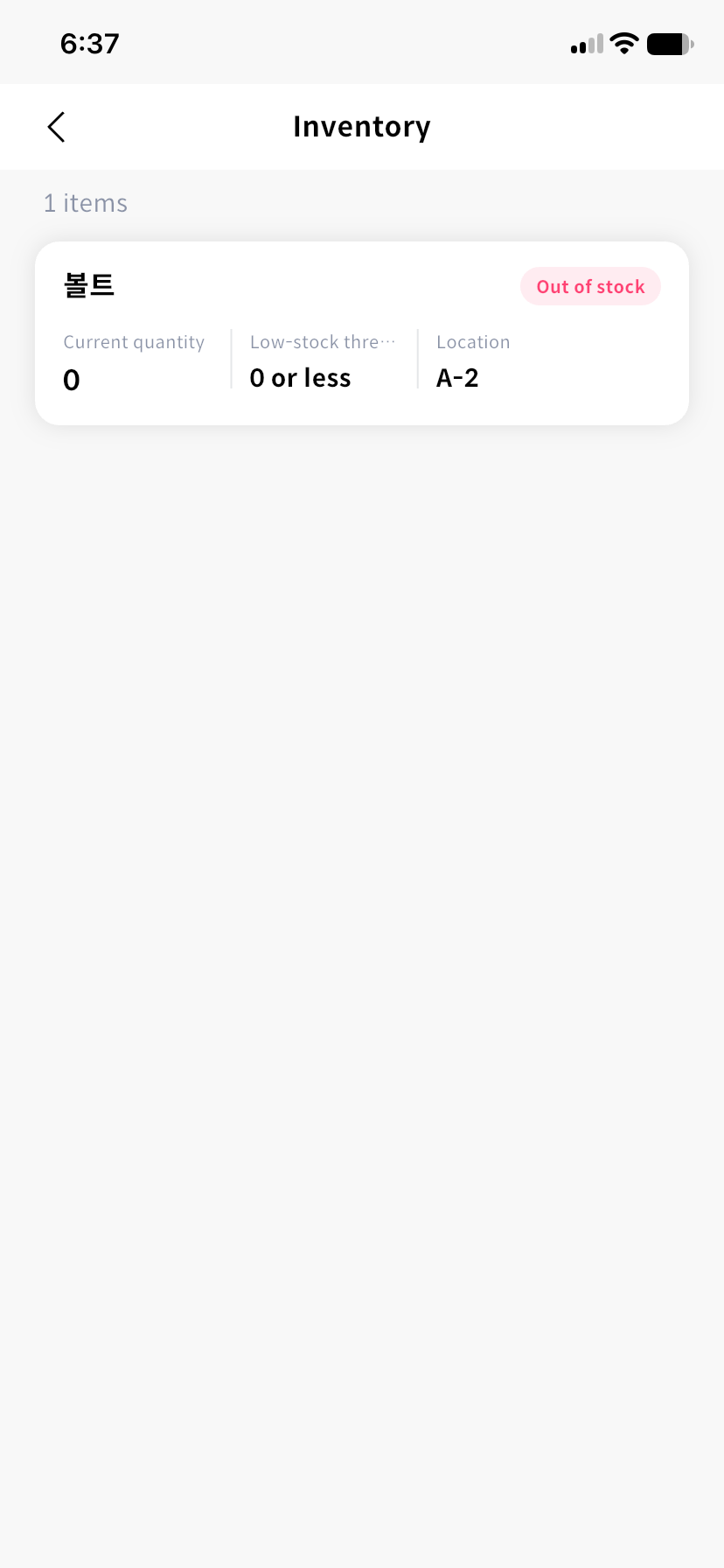
Open Inventory to check each item's quantity, shortage threshold, and storage location. Ask your administrator to replenish items marked Low stock or Out of stock. With an assigned inventory schedule, you can submit movements or a no-change check in the app. For item settings and stock adjustments, see the admin inventory guide.
If repairs are needed, see Repair requests and work records. Facility features require a network connection.