
Issues
Record faults, damage, contamination, and hazards found on site, then track their progress. Select Issues in the bottom menu.
Find an issue to handle
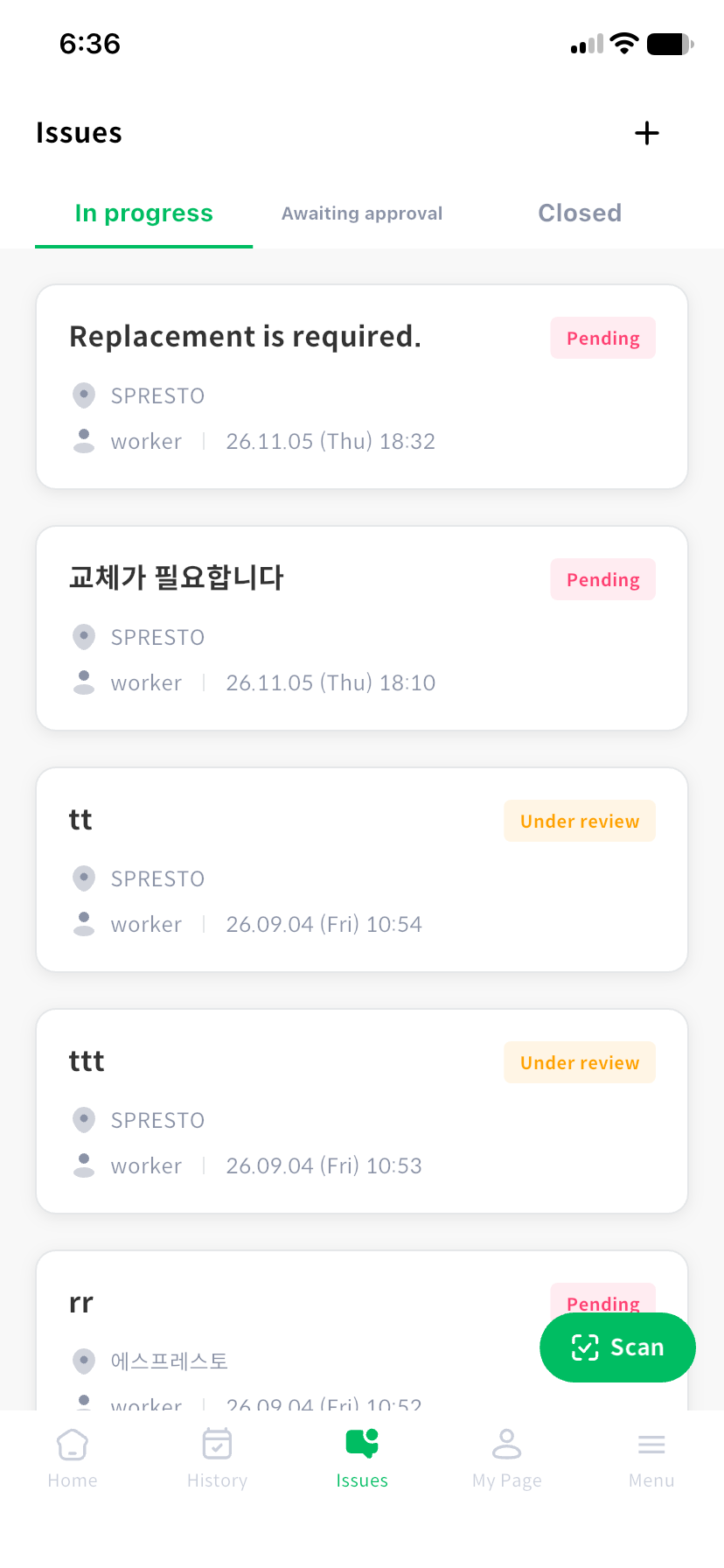
Choose a tab and open an item.
| Tab | What it contains |
|---|---|
| In progress | Reported issues awaiting action or under review |
| Awaiting approval | Issues with a resolution recorded, awaiting administrator follow-up |
| Closed | Issues finally closed by an administrator |
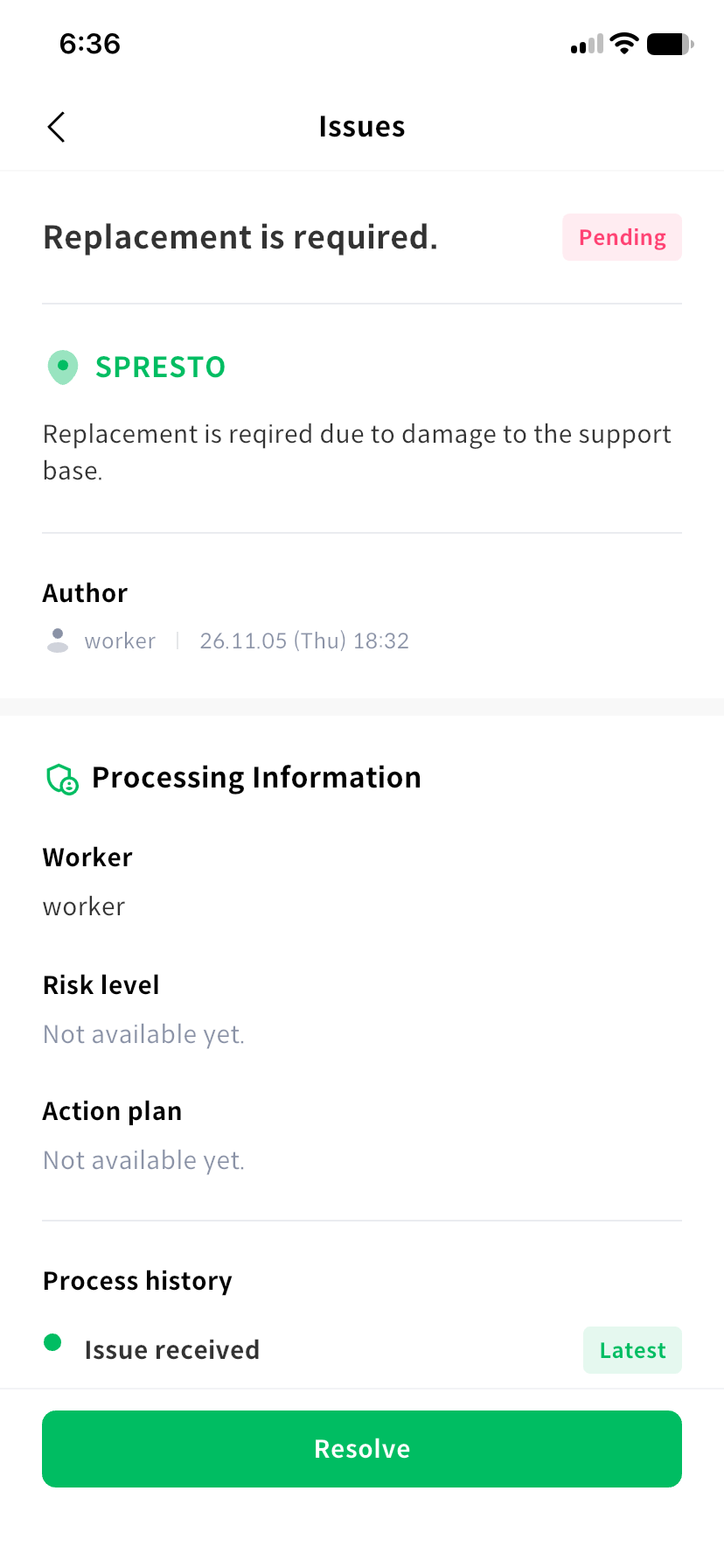
Check the facility, report, and photos in the detail. When processing information is available, review the assigned worker, risk level, action plan, and history. History lists the most recent changes first.
Report an issue
- Use the report button in Issues, or select Report issue during an inspection.
- Enter a title and description, and check the facility. When opened from an inspection, that facility is fixed.
- Attach up to five photos showing the problem clearly.
- Enable Hand over to the next inspector if it needs attention at the next inspection.
- Select Submit and check the outcome.
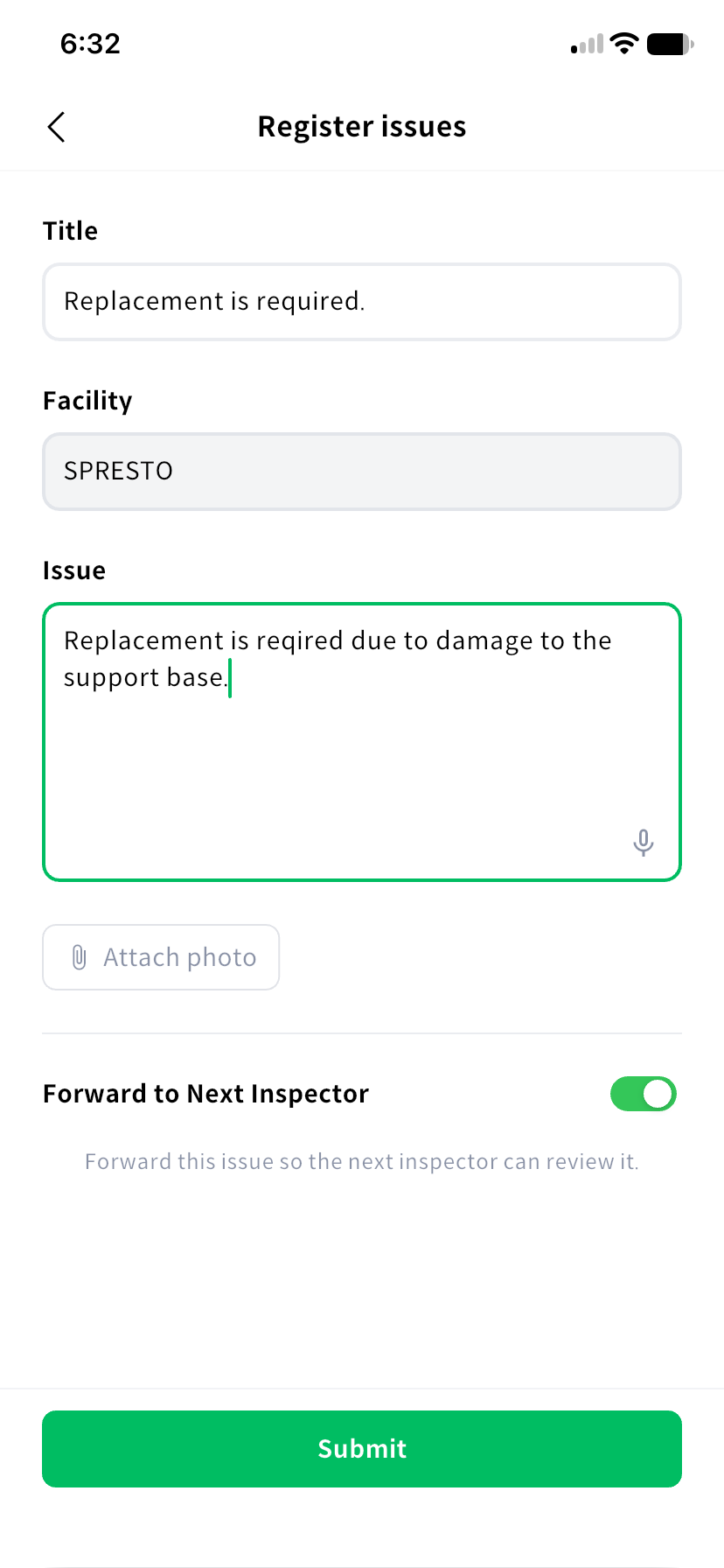
You can dictate the description. Include the exact location, what differs from normal, and any temporary action taken. Handed-over issues appear in a card when the next inspector checks that facility.
Record a resolution
Open an issue that is awaiting action or under review and select Resolve. Describe the action in Resolution details, attach photos as needed, and select Submit at the top. A resolution does not require another title.
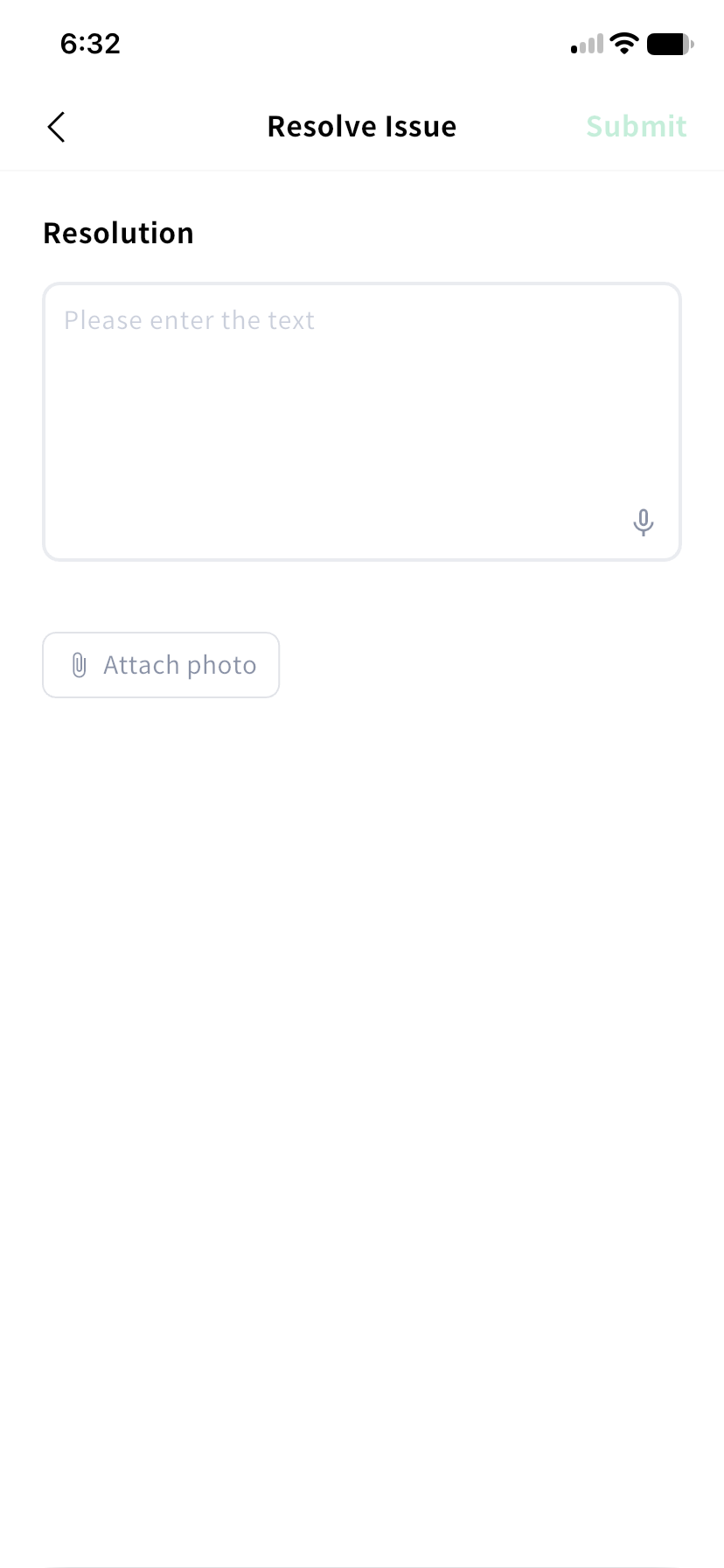
After a resolution is recorded, the issue moves to Awaiting approval. Recording a resolution and final closure are separate actions; an administrator performs final closure. Resolve is unavailable for issues awaiting approval or already closed.
If the network fails while reporting a new issue, use the temporary-save prompt. Check saved reports under pending submissions. Ensure you are connected when recording a resolution.