
Offline Work
Before entering an area with poor reception, download your checklist-based work. Save completed results on the phone and send them after reconnecting. Downloading work and transmitting results are separate steps.
Environment and inventory inspections require a connection and cannot be saved as pending submissions. Seeing a schedule in the list does not mean it supports offline submission. Perform environment and inventory work while connected.
Download work before going on site
- While online, open Menu > Offline Task Sync or the sync button on Home.
- Choose a download date range, within the next seven days including today.
- Select Download selected work.
- Check the dates, work counts, and sync times in the sync history.
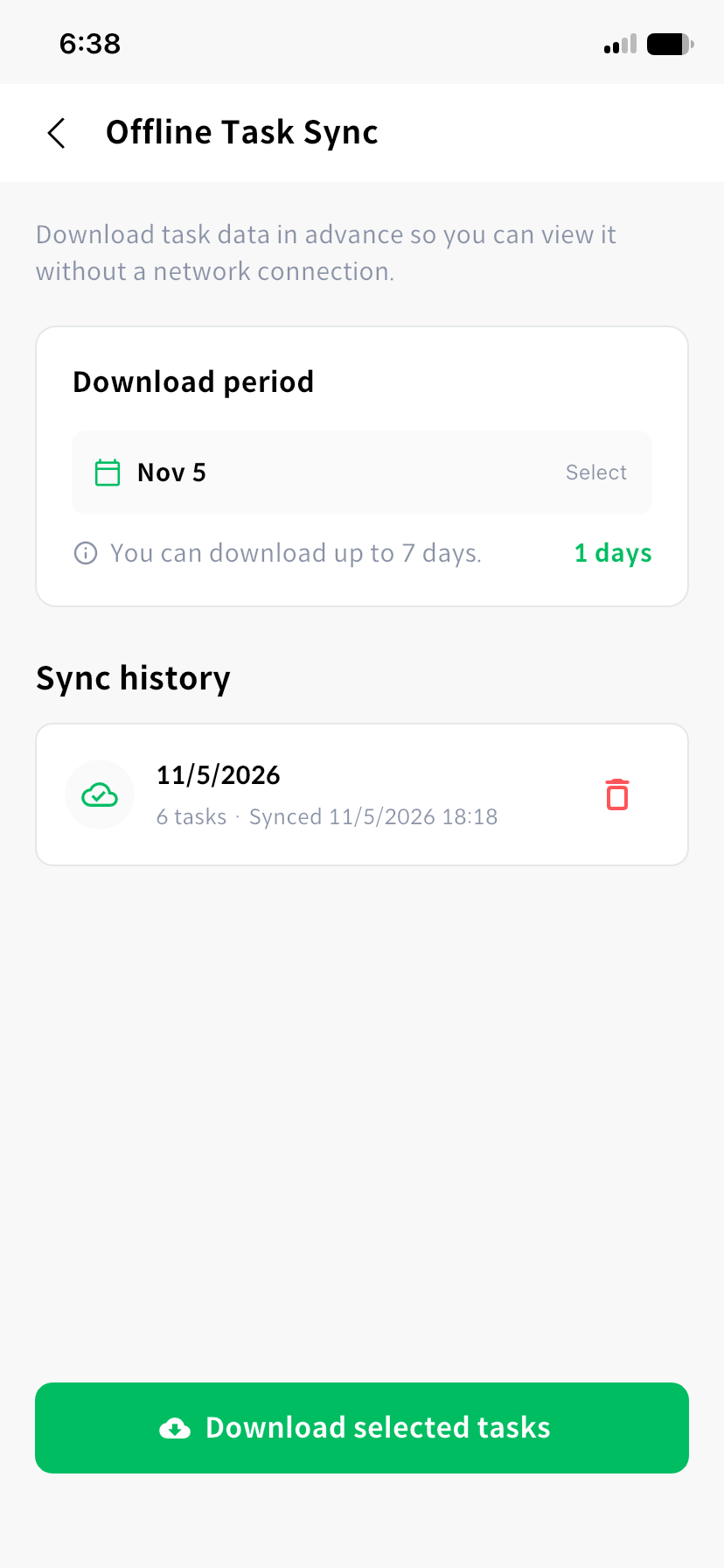
Download again while connected if schedules or templates have changed. You can delete unneeded downloaded dates from sync history. Deleting a download does not transmit results.
Work without a connection
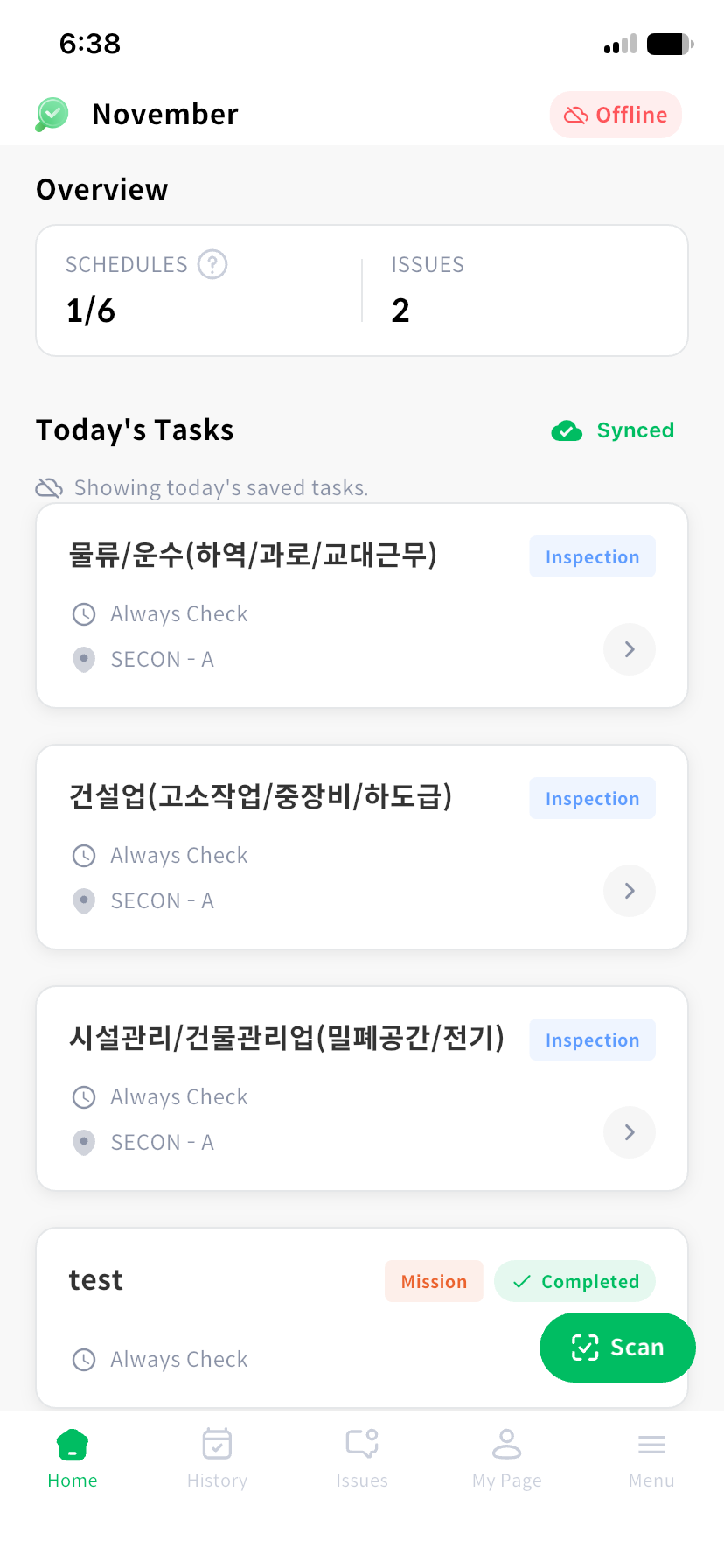
Home displays saved work for today while offline. Choose downloaded work and, for an inspection, verify the facility's NFC pad. Complete the answers and photos, then accept the temporary-save prompt when submitting.
A new issue reported during an inspection can also be saved temporarily after a network failure. Regular list viewing, facility features, issue resolution, and photo value extraction require a connection. Offline voice input support depends on the device.
Send pending submissions
When the app detects a restored connection, it automatically sends pending items. Check remaining items in the Home pending cards or Menu > Waiting to send.
You can send an individual item, use bulk transmission from Home, or select Send all on the pending screen. Review progress and the success and failure counts. If items remain, check the connection and resume transmission.
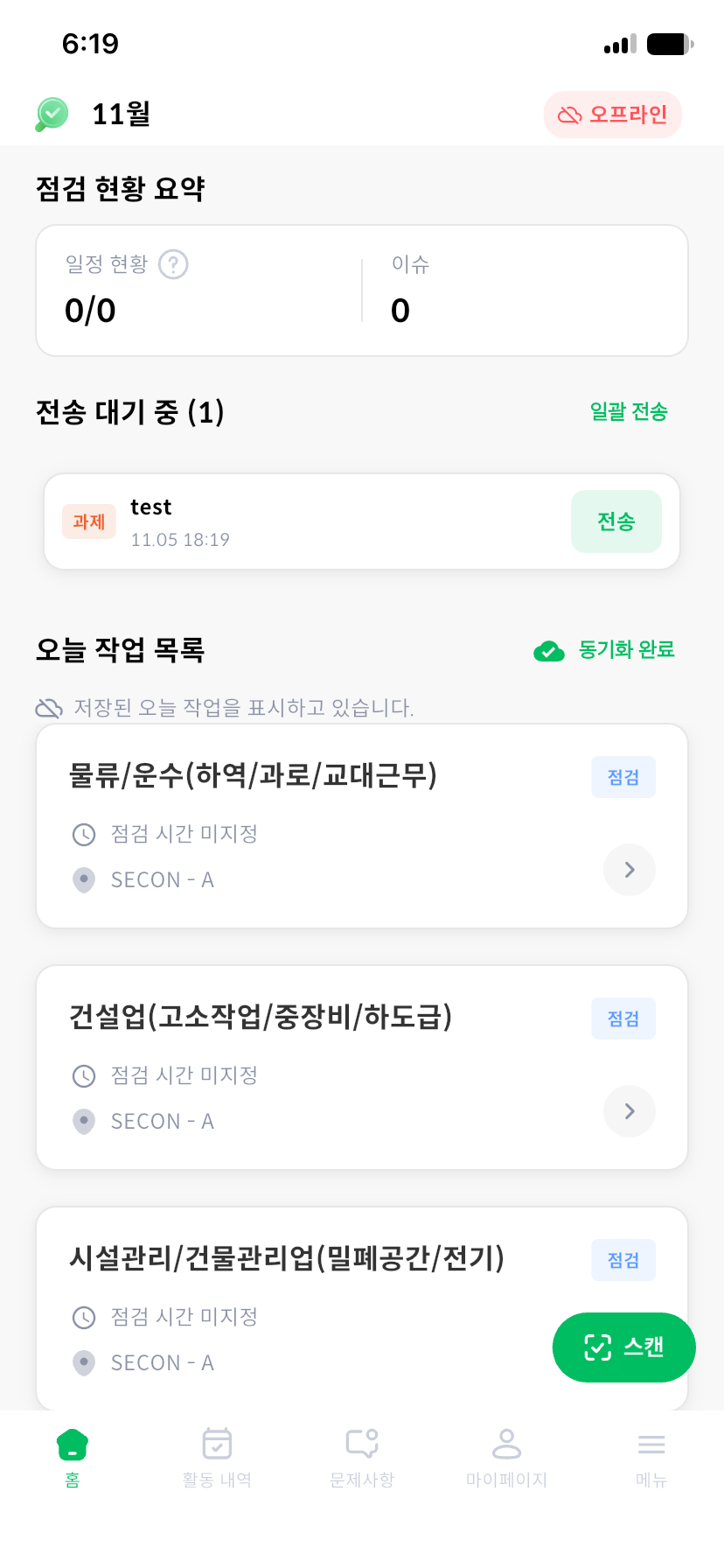
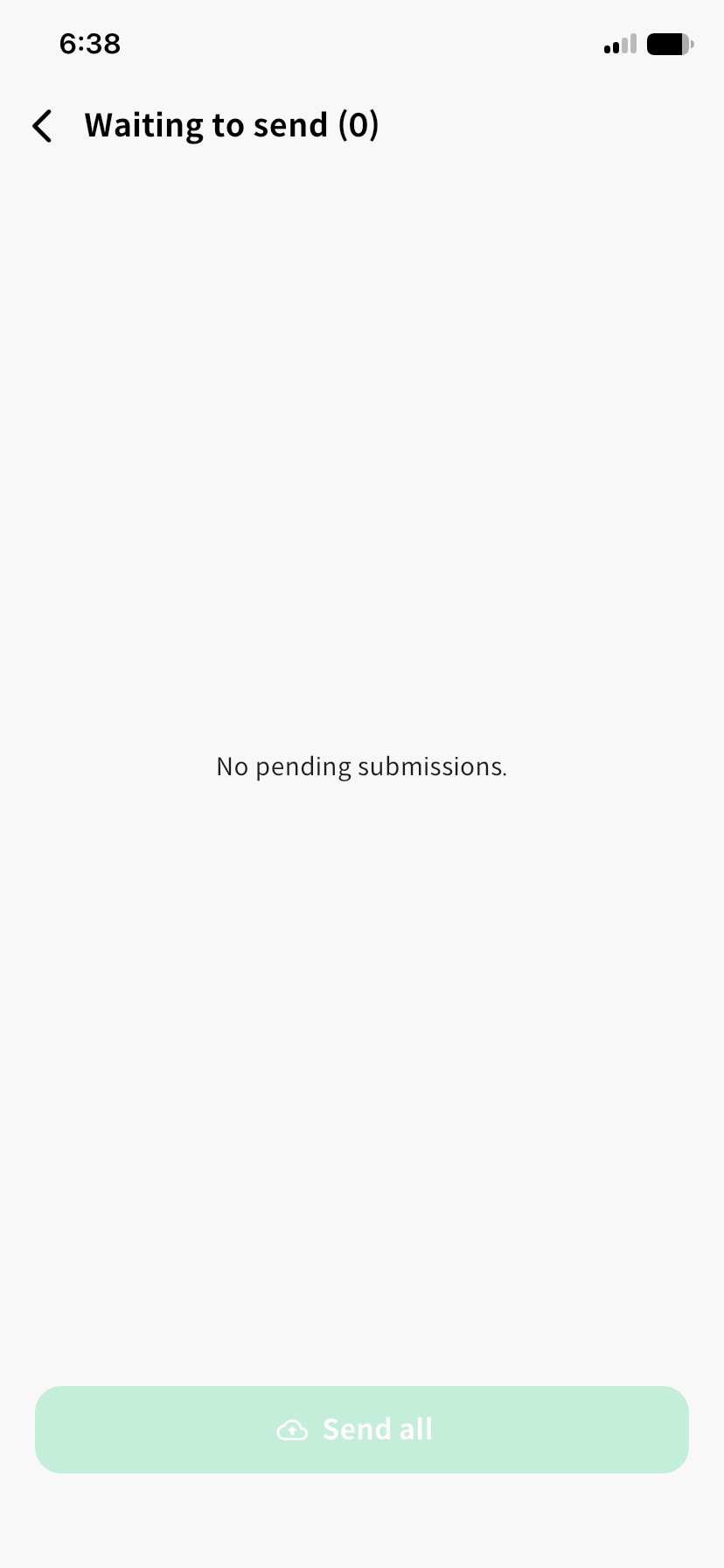
Wait until transmission finishes. Work already pending cannot be performed again, and starting new work may be temporarily blocked while pending items are being sent.
A temporary-save message does not mean submission is complete. Check that pending items have been processed, then review transmitted inspection results in History. If the app says an inspection is already complete, check its server result first.
Avoid clearing app data or reinstalling before all pending items are sent. Check transmission using the account that performed the work.