
NFC Registration and Reset
Link a new inspection pad to its facility. Open Menu > NFCs > Register NFC. Registration and reset require a network connection.
Prepare for registration
Check that the facility name and location match the installation site. Your phone must support NFC reading and writing. If you are unsure whether the pad is already in use, ask your administrator first.
1. Check the pad
Select NFC scan and read the pad to register. Confirm that it can be registered before continuing. If it is already registered or cannot be written to, check that condition first.
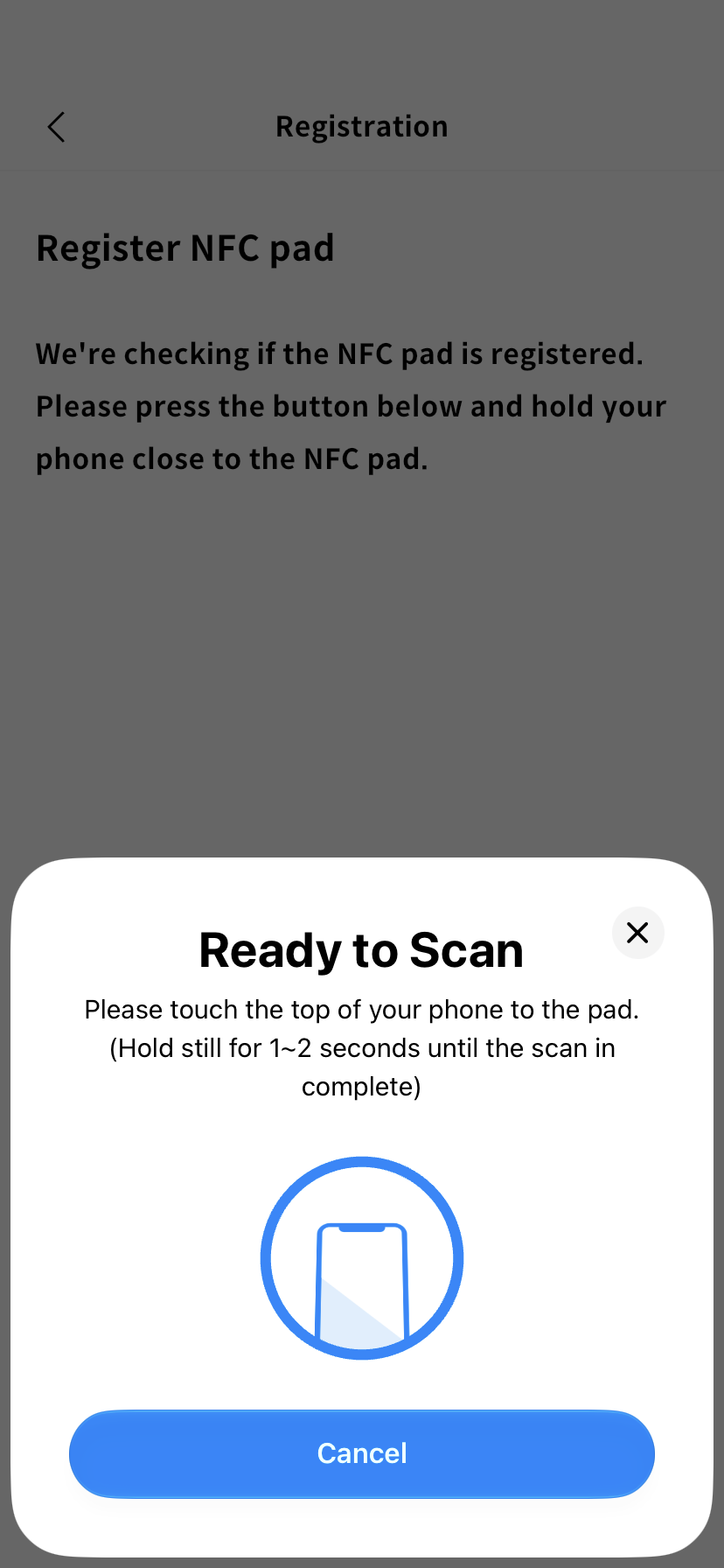
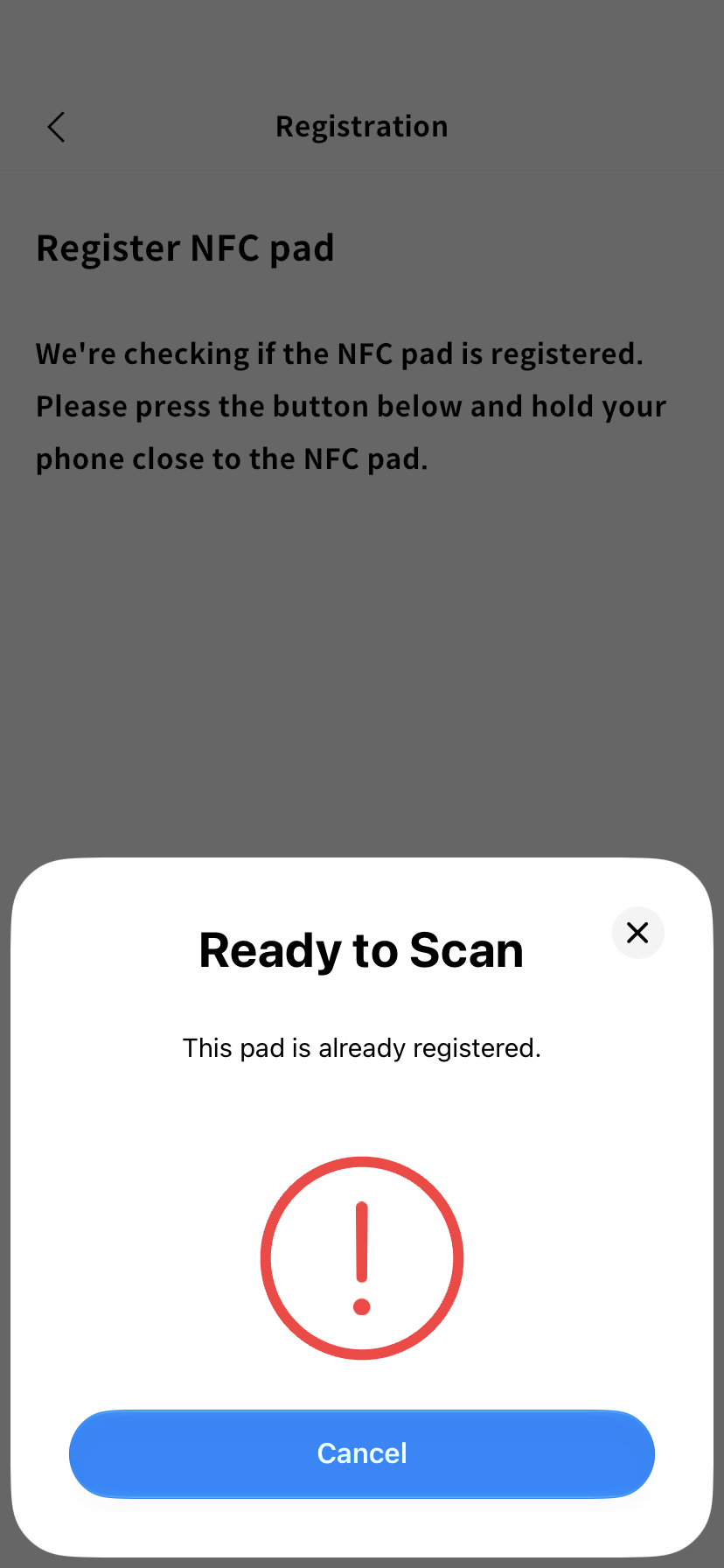
If This pad is already registered. appears, check the linked facility. If the link needs to change, confirm the target with your administrator and follow the reset procedure below.
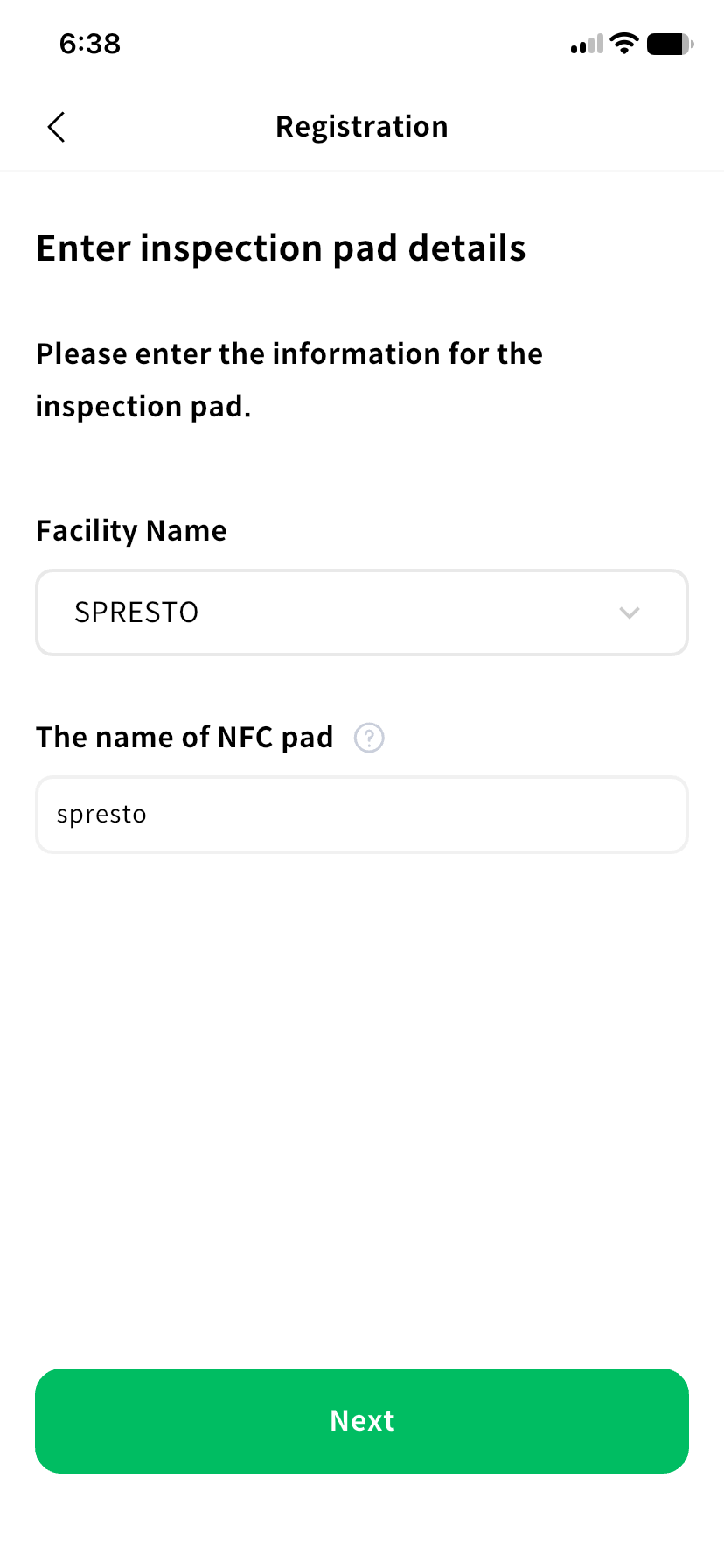
2. Enter the facility and pad name
Choose the Installation facility and enter a Pad name. Where a facility has several pads, use a location such as First-floor entrance or Inside machine room to distinguish them.
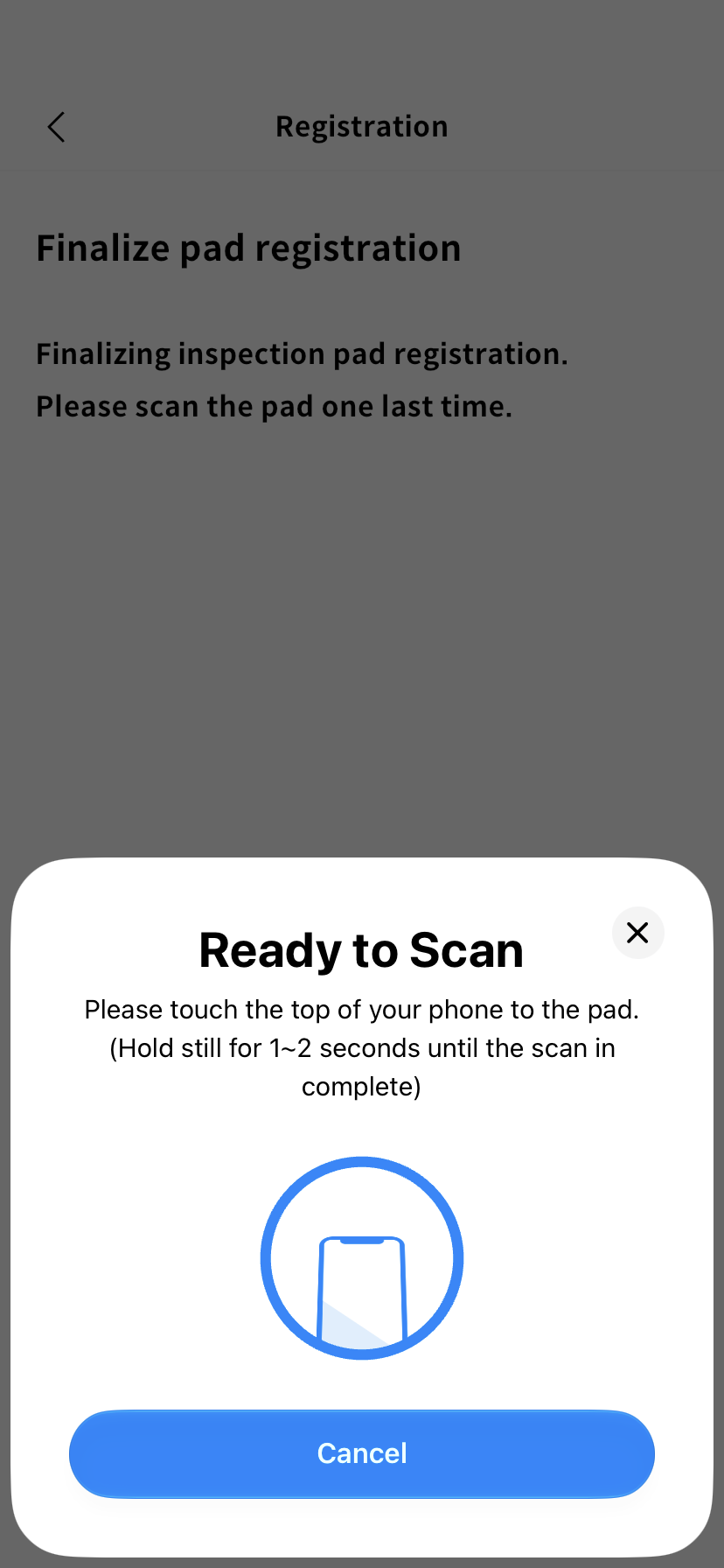
3. Scan the same pad again
At final registration, scan the same pad you checked first. Keep the phone still until scanning finishes and check the success message. Registration cannot finish if a different pad is detected.
After registration, check the pad information in the facility list. Use Scan to verify that the correct facility opens.
Reset a pad
To remove its link before registering it again, open NFCs > Reset inspection pad. Review what will be deleted on the reset screen, select Reset inspection pad, then scan the target pad.
Reset deletes the pad registration and NFC data. The pad must be registered again before use. Confirm the target with your administrator before resetting a pad currently used on site.
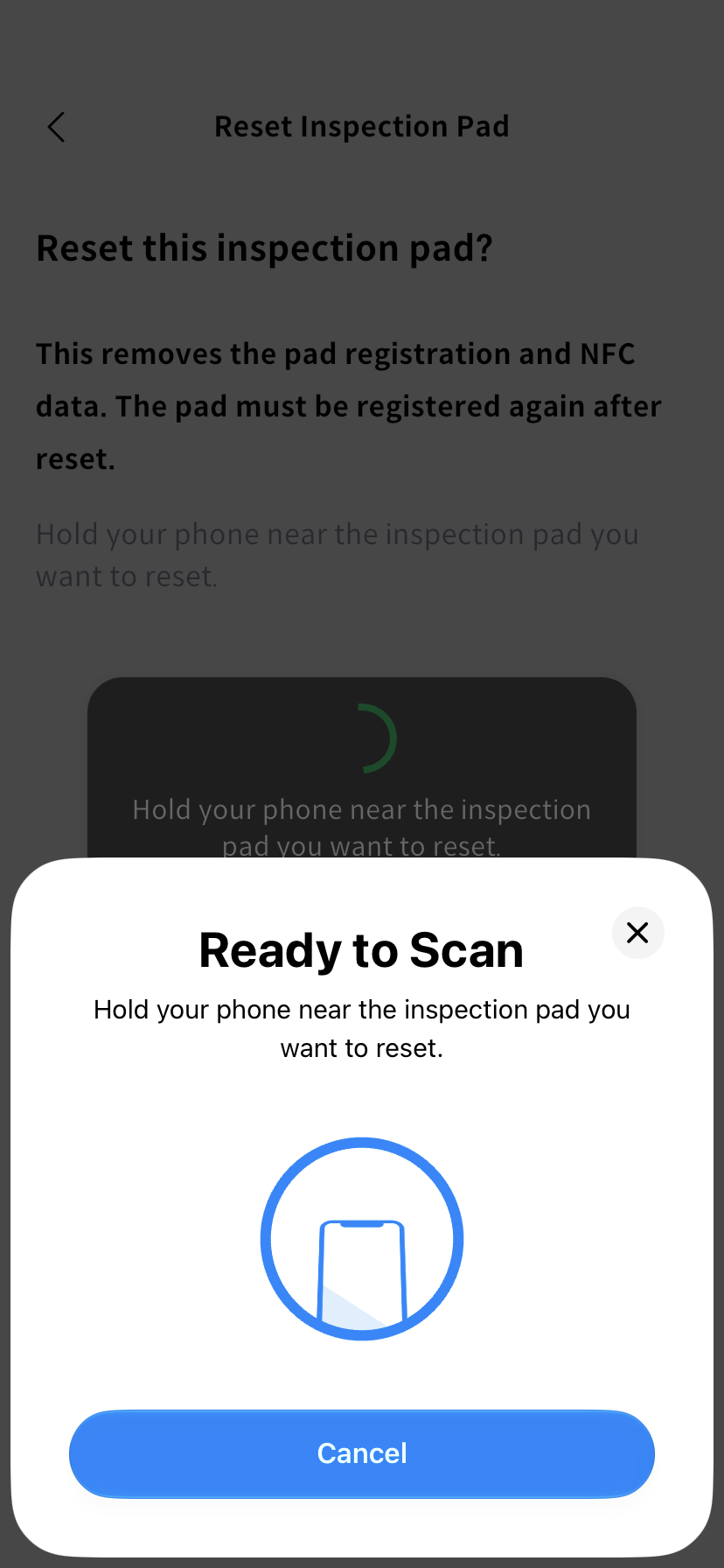
If scanning fails, check NFC settings and the phone's contact position, then retry. Do not assume registration or reset succeeded without a success message.