
Repairs
Request repairs for a facility and record work or supplements for jobs assigned to you. Scan the facility and open its Repairs card.
Request a repair
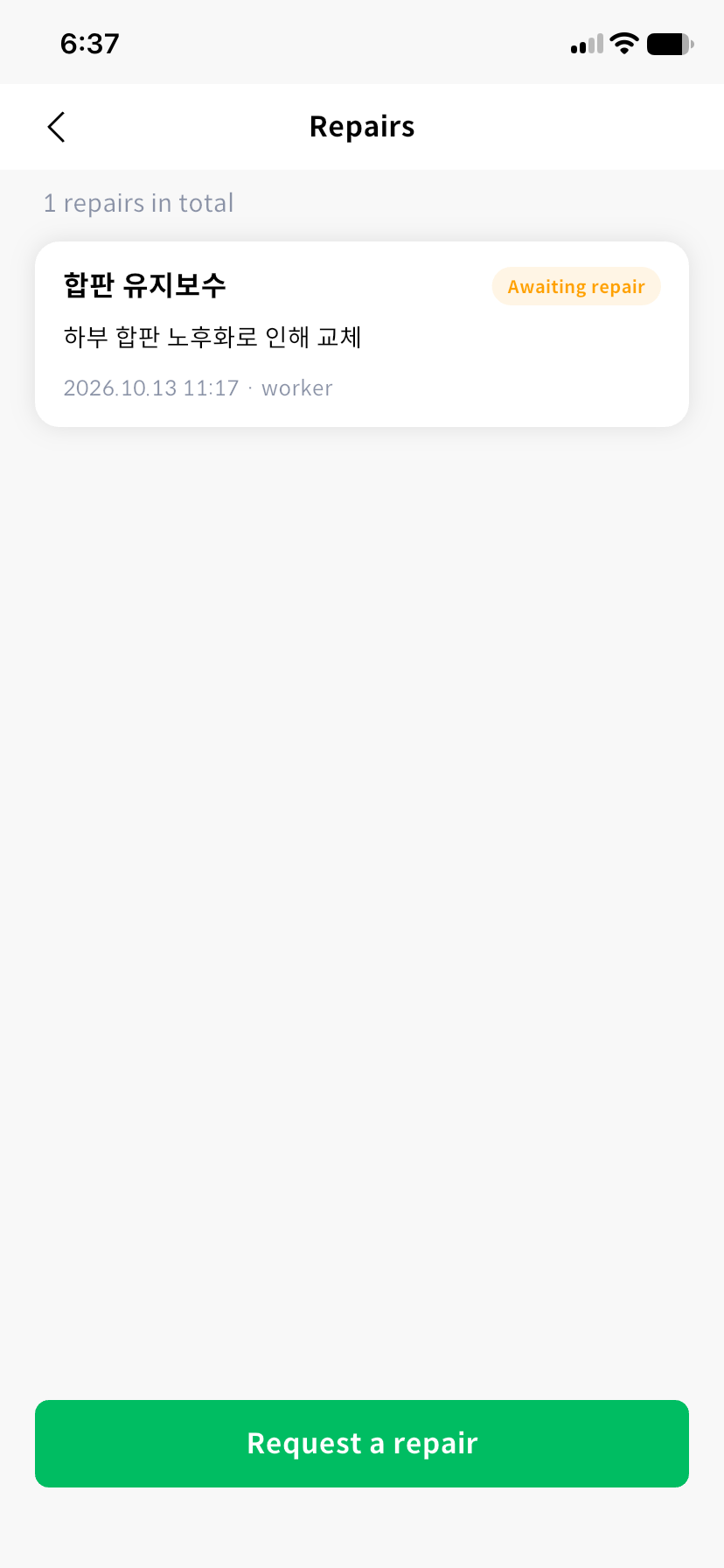
- Select Request a repair in the repair list.
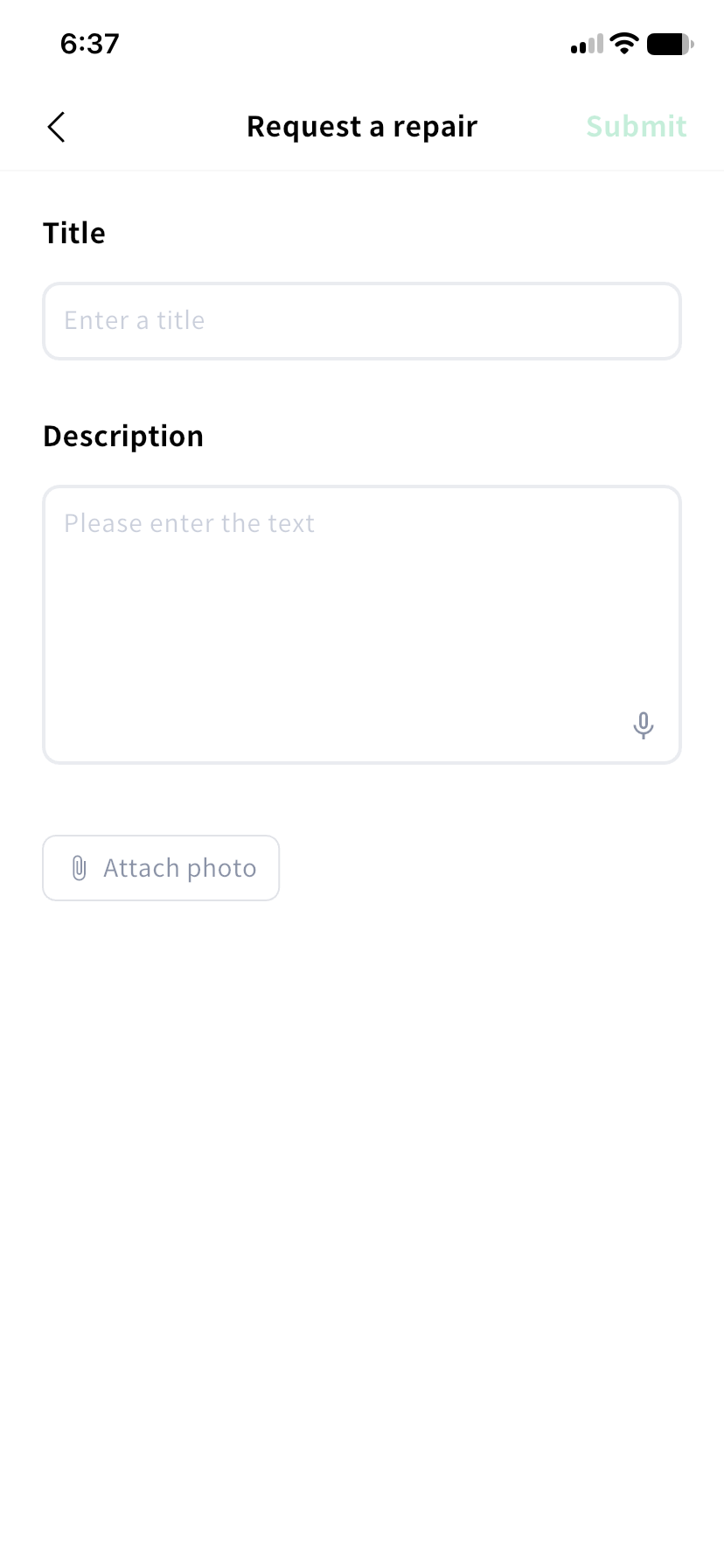
- Enter a title and description, including the location, symptoms, and work needed.
- Attach up to five photos and register the request.
- Check its status in the list.
Check status and instructions
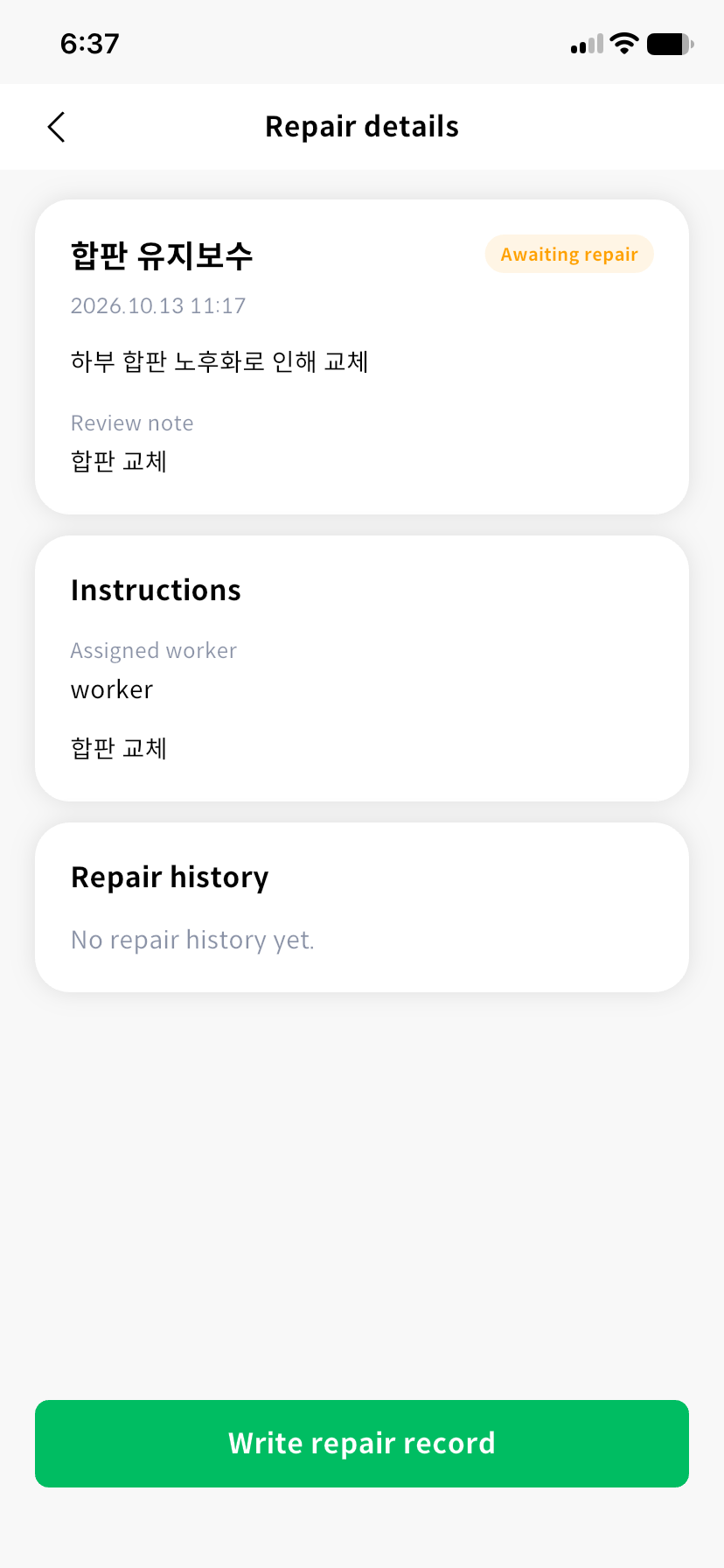
Open a repair to review the request, review notes, assigned worker, and instructions. The history includes instructions, work records, rework requests, and completion.
| Status | What to do next |
|---|---|
| Awaiting review | Wait for administrator review of the request. |
| Rejected | Read the review notes. |
| Awaiting repair / In progress | The assigned worker follows the instructions. |
| Awaiting confirmation | Wait for review of the submitted work record. |
| Rework needed | Read the rework request and record additional work. |
| Completed | Review the administrator's completion record. |
Record assigned work
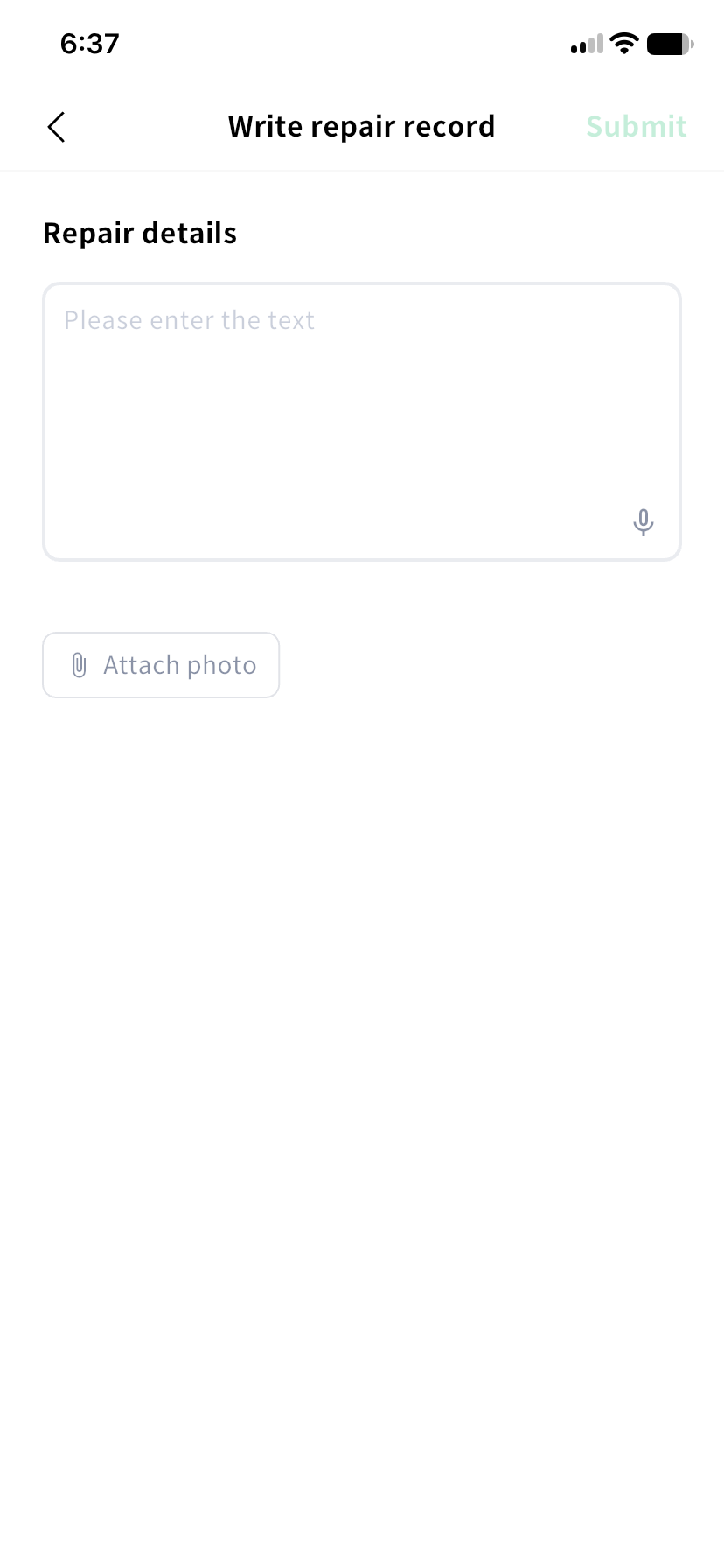
Repairs assigned to you display Write repair record or Supplement repair when work can be recorded. Enter the work details, attach photos, and select Submit. Voice input is also available for the description.
Submitting a record does not mean final completion. Check the awaiting-confirmation status. If an administrator requests rework, review the request and add a supplement. Work-entry buttons are unavailable when you are not the assigned worker, or the repair is awaiting confirmation or complete.
Repair requests and work records require a network connection. For request approval, assignment, and final completion, see the admin repairs guide.