
My Page
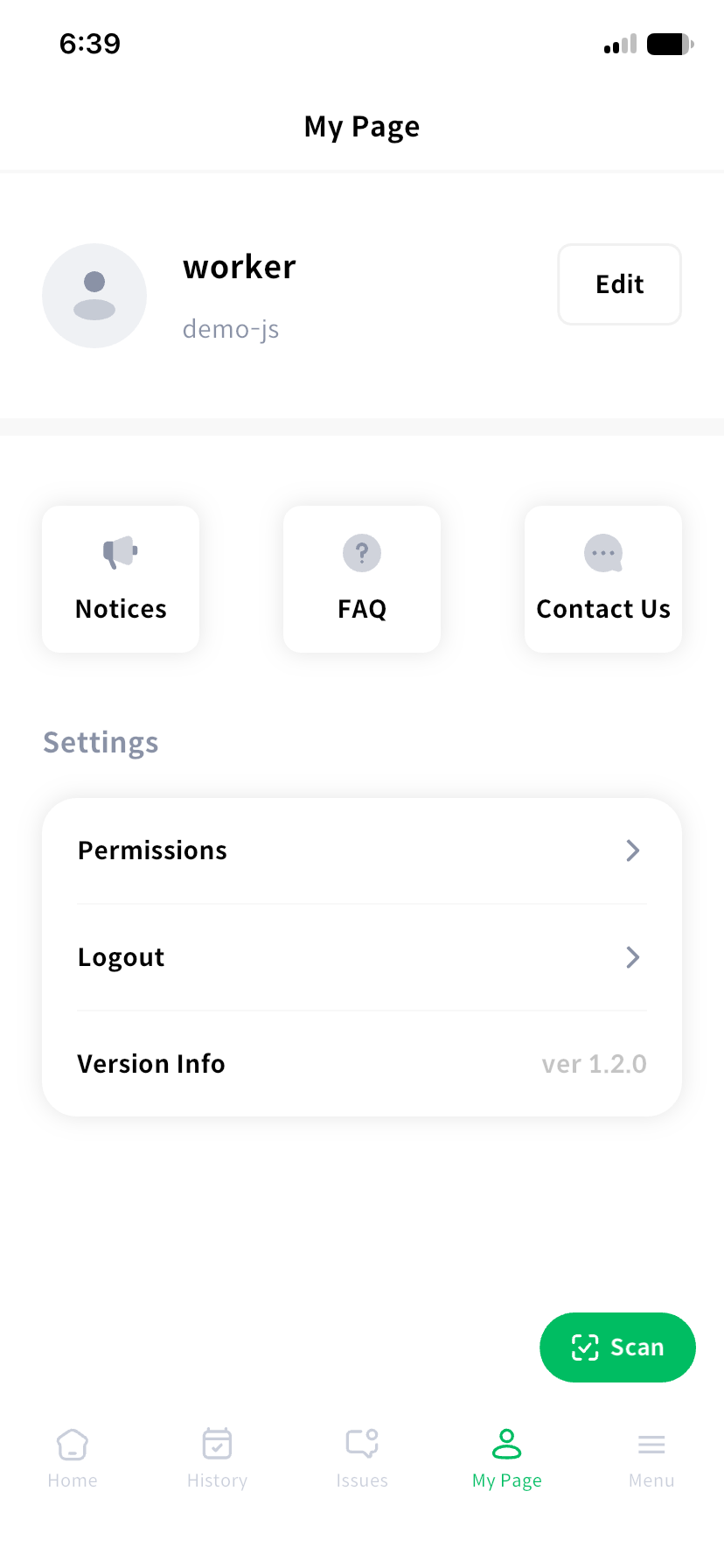
Check your details and app permissions, or get help. Select My Page in the bottom menu, or Menu > Settings.
Edit your details
Check your name and organization, then select Edit. Change your name and phone number and save with the edit button. Ask your administrator if your organization information is incorrect.
Read notices and get help
Read guidance in Notices and common questions in FAQ. Acknowledgements for organization site announcements are managed under Notifications and announcements.
Contact us opens the support chat. Include the screen, facility name, time, and error message so support can understand the problem.
Check permissions and version
Permission settings opens the phone's app settings. Check camera and photo access if attachments fail, or microphone and speech recognition permissions if voice input fails. Check notification permission to receive inspection reminders.
Use Version information to check the installed app version. Follow update prompts before continuing.
Log out
Select Log out and confirm. Check for pending submissions before changing shifts. The next user should work under their own account and name. With an organization shared account, also check which worker is linked to the device.