
Notifications and Announcements
Check upcoming inspections and site announcements. Open notifications from the top of Home.
Check inspection reminders
On the Notifications tab, check the scheduled time, facility, and work name. Select a notification to open its linked schedule detail. Check the time and facility again before starting.
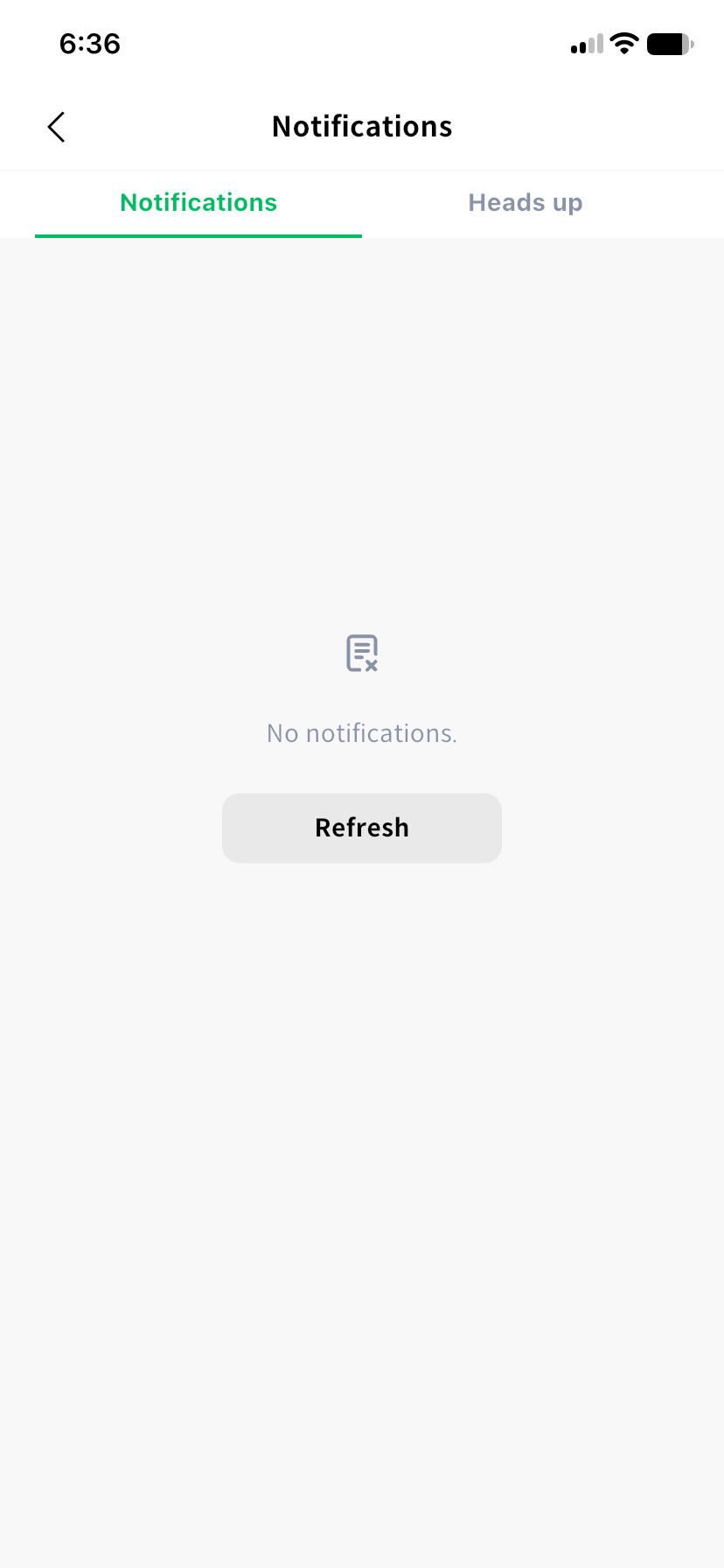
To tidy the list, select the delete icon at the top, then delete individual notifications or use Delete all. Read the confirmation before deleting all notifications. Deleting a reminder does not submit the inspection result.
Read and acknowledge announcements
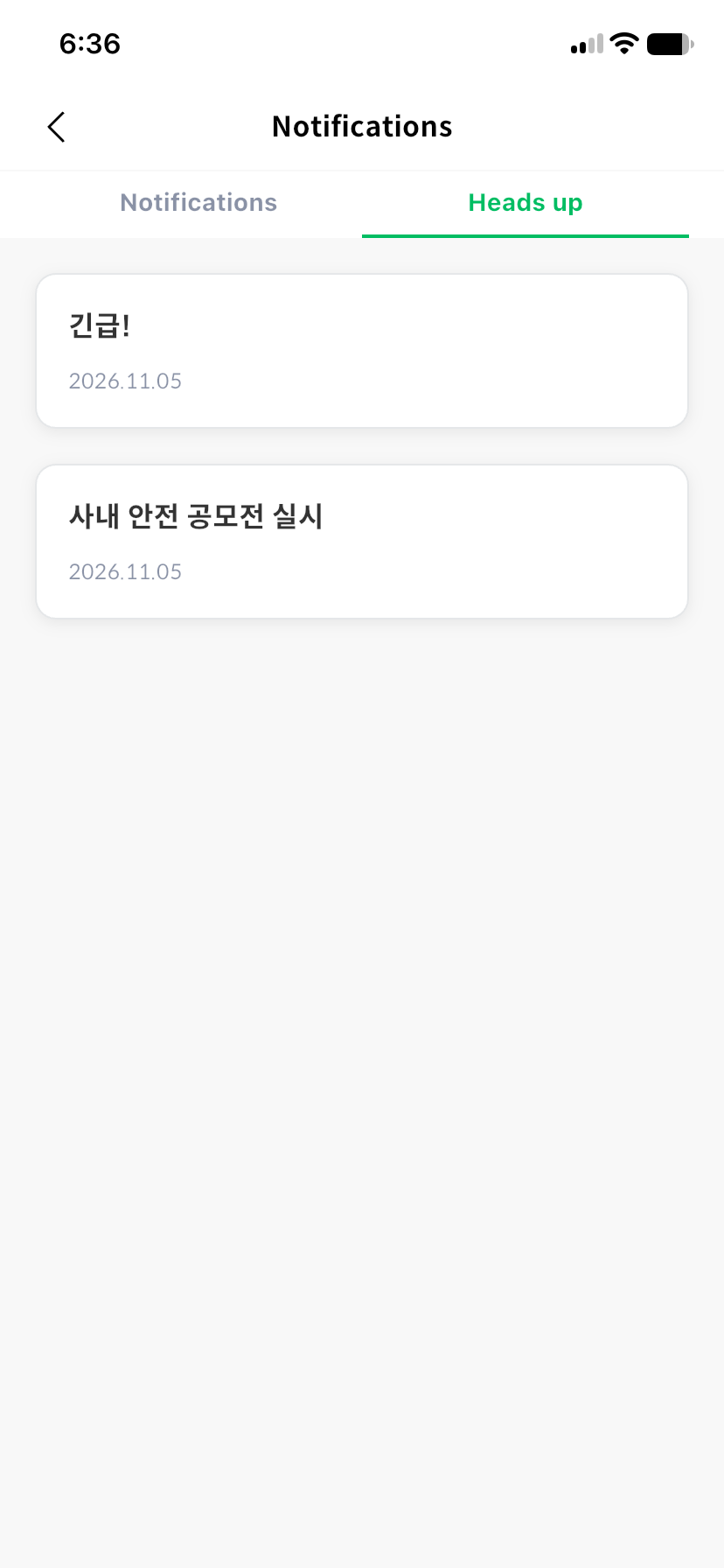
Open a currently published item on the Heads up tab. Read the text and images. If acknowledgement is required, select I've read this. Check the acknowledged status and time afterward.
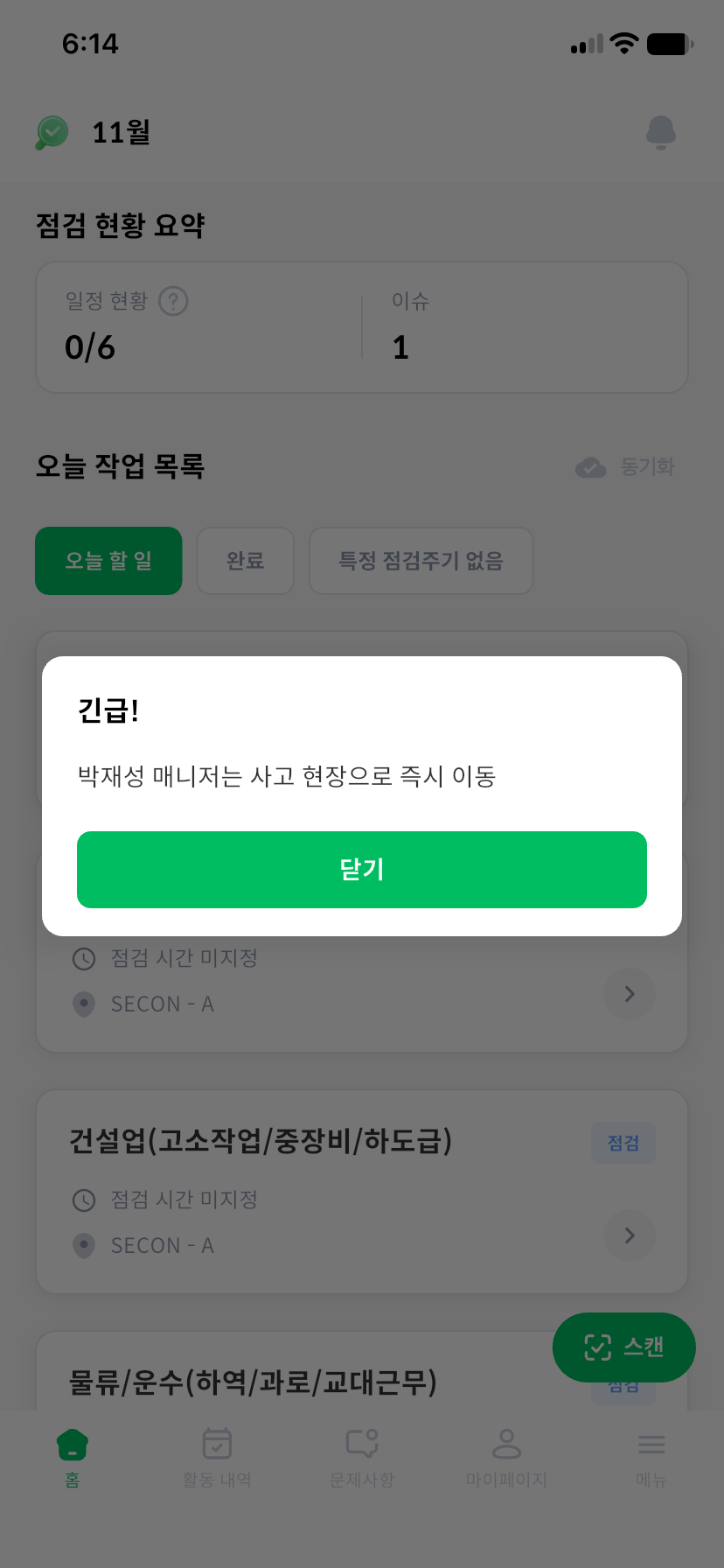
When an announcement popup appears, read each item and move forward or back. Use the acknowledgement button for items that require confirmation. Viewing an announcement and acknowledging it are separate actions.
An announcement may no longer open after publication ends or it is deleted. If acknowledgement fails, reconnect and try again. For notices, FAQs, and other help available from My Page, see My Page.