
History
Review inspections and tasks completed by the signed-in inspector. Select History in the bottom menu. You can review checklist answers and photos as well as environment and inventory schedule records.
Find work by facility and date
- Open Date and choose the start and end completion dates. The end date is included.
- Choose Facility to focus on specific facilities.
- Search by facility name and select one or more facilities. Scroll down to load more.
- Check the selected facility count on the bottom Apply facilities button and apply.
Facility selections stay when you change the search or load more options. Remove individual selections from the chips at the top, or reset the selection and apply. You can also remove facility or date conditions using the delete button beside each active filter.
The current list has facility and date filters. It does not offer filters for other inspectors or inspection/task type. Ask an administrator to use admin inspection records when you need another person's work.
Review checklist answers and photos
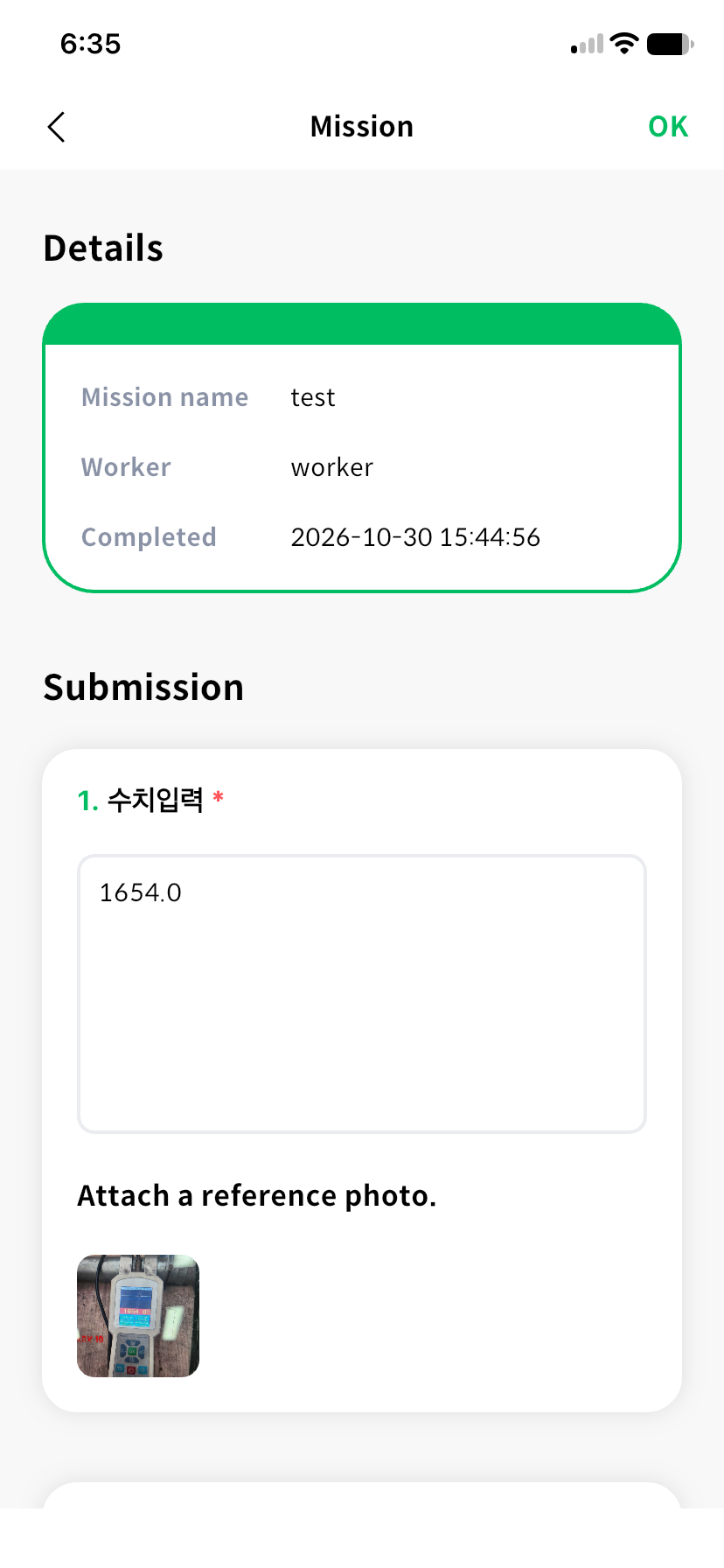
Open a list item to view Schedule details. Check the work name, facility, workers and times, then review the answers and photos. If an occurrence contains checklist results from several inspectors, change the worker selection to view their answers.
Review environment and inventory records
Environment and inventory details show their recorded entries. Although the list finds your completed work, an opened occurrence can also include records added by other inspectors. Check the author on each entry. Scroll down to load more records.
| Method | What to check |
|---|---|
| Environment measurement | Item readings, units, above/below-range indicators, authors and timestamps |
| Inventory | Items, inbound/outbound direction, quantity changes, stock before and after, authors and timestamps |
Inventory occurrences submitted without movements display a no-change message. To submit additional entries, see Environment inspections or Inventory inspections.
If a record is missing
Check the signed-in account and facility/date filters first, then pull down to refresh. If loading fails, check the connection and retry.
Checklist results saved offline do not appear until transmitted. Check pending submissions first. For downloads and administrator record management, see admin inspection records.