
Facilities
Register the places and equipment you inspect, then review inspection records and operational information for each facility. Open Facilities in the left menu.
Register a facility
- Select Add facility in the facility list.
- Enter a recognizable Name and Location.
- Select the Management options this facility needs. You can leave them empty and change them later in facility settings.
- Save, then open the facility to review its settings.
A facility is registered with its name and location, with management options connected as needed.
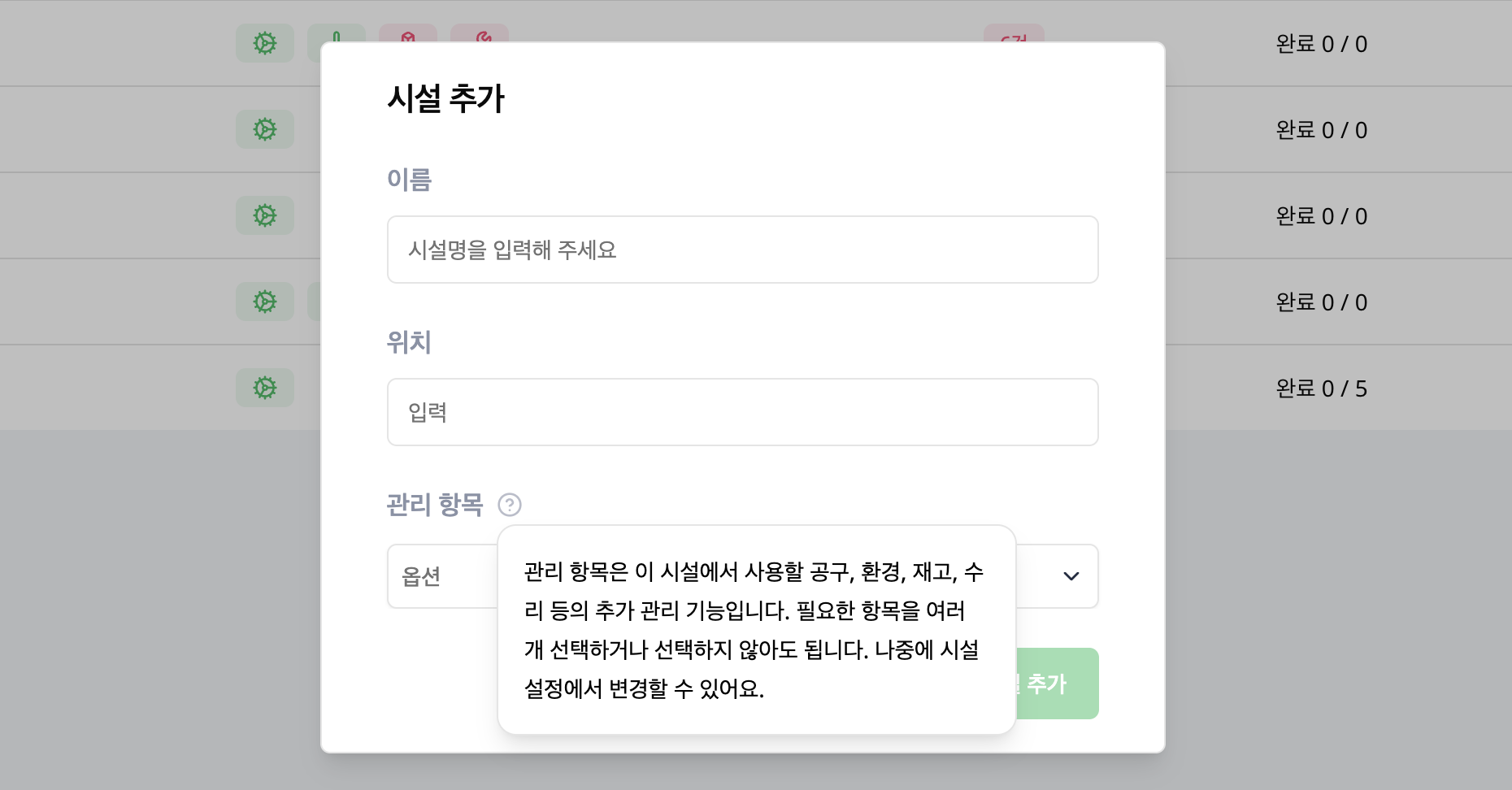
Choose management options
| Management option | What to manage | Guide |
|---|---|---|
| Equipment Consumables | Consumable usage and replacement | Equipment Consumables |
| Environment | Measurement items, ranges and monthly records | Environment |
| Inventory | Quantities, movements and history | Inventory |
| Repairs | Repair requests and progress | Repairs |
Change Management options in the facility's Settings tab. Equipment Consumables, Environment and Inventory tabs appear when those options are enabled for that facility.
Review facility details
Open a facility to review the Settings and Inspection history tabs. Use inspection history to check its schedules and results together. Management option tabs provide access to equipment consumables, environmental records, inventory and repairs for that facility.
To change the name, location, management options or alert recipients, select Edit as an administrator. Review your changes and select Save. Cancel to return to the saved settings.
While editing, you can add up to 3 Facility images so the facility is easy to recognize.
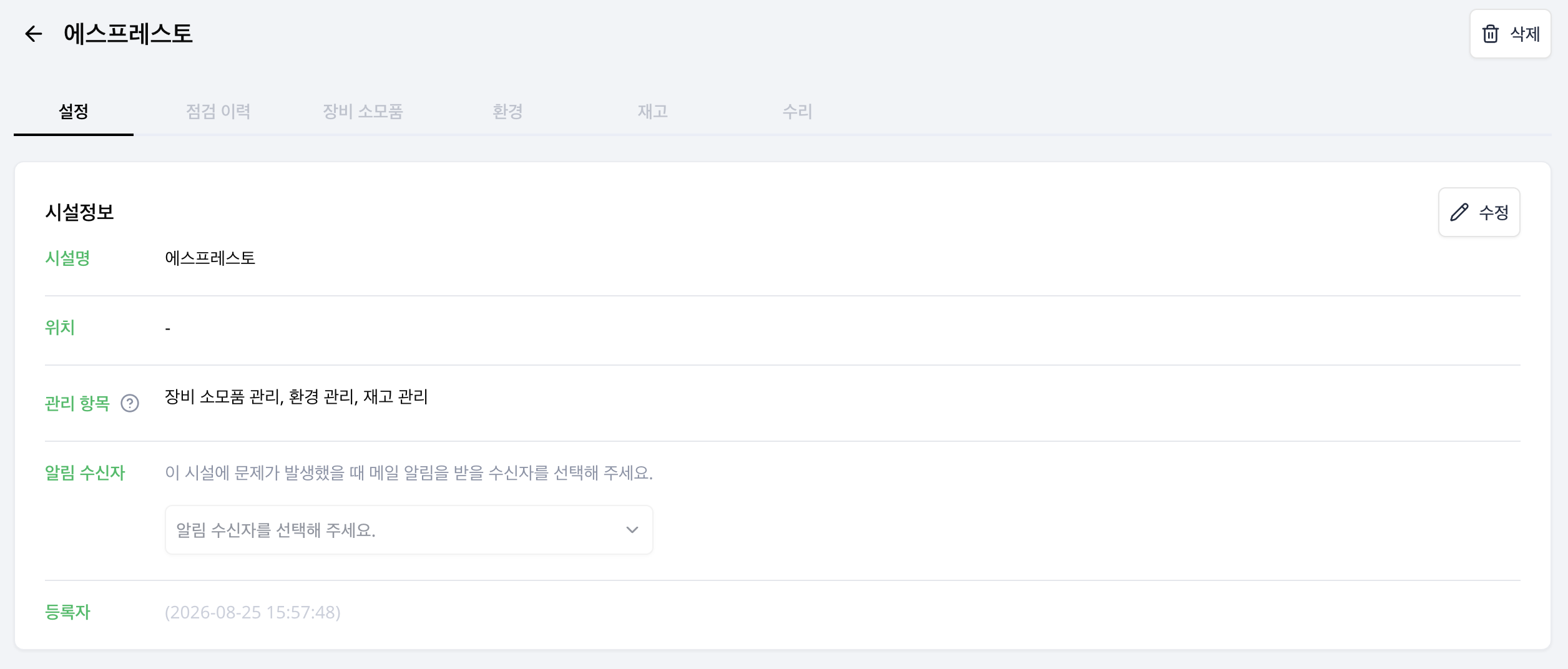
Set alert recipients
- Open the facility's Settings tab and select Edit.
- Open Alert Recipients and select the groups or administrators who should receive alerts. You can select both kinds.
- Apply the selection, then select Save in the facility settings.
If no recipients are selected, all administrators are notified. This setting covers facility problem alerts and out-of-range checklist readings. Open the bell icon at the top of the screen to review admin notifications.
Prepare environment or inventory schedules
Enable the relevant management option before creating recurring environment or inventory work. Environment measurement also requires an active environment item before it can be selected in a schedule. Then choose the facility and inspection method in Schedules.
You cannot disable a capability while schedules still use it. Review the linked schedules first.
Edit or delete a facility
An administrator can edit settings or delete a facility. A facility used by schedules cannot be deleted. Review linked schedules first.
See facility stickers to help inspectors identify the right facility on site.