
Heads Up
Share precautions and work instructions with target inspectors in the app before they start work. Open Heads Up in the left menu.
Find a heads up
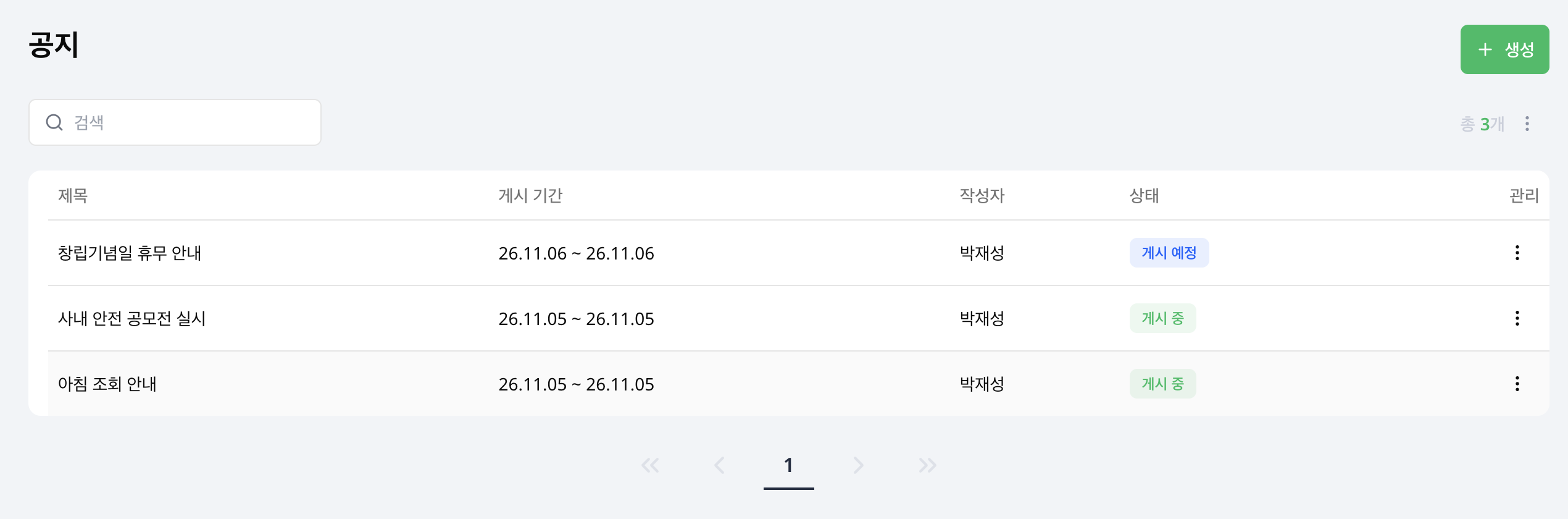
Search by title and check the display period, creator and status in the list. Select a heads up to read or edit it.
| Status | Meaning |
|---|---|
| Scheduled | The start date has not arrived. |
| Active | Shown in the target inspectors' app from the start date through the end date. |
| Ended | The end date has passed. |
Display periods and statuses use your organization's time zone and include both the start and end dates.
Create a heads up
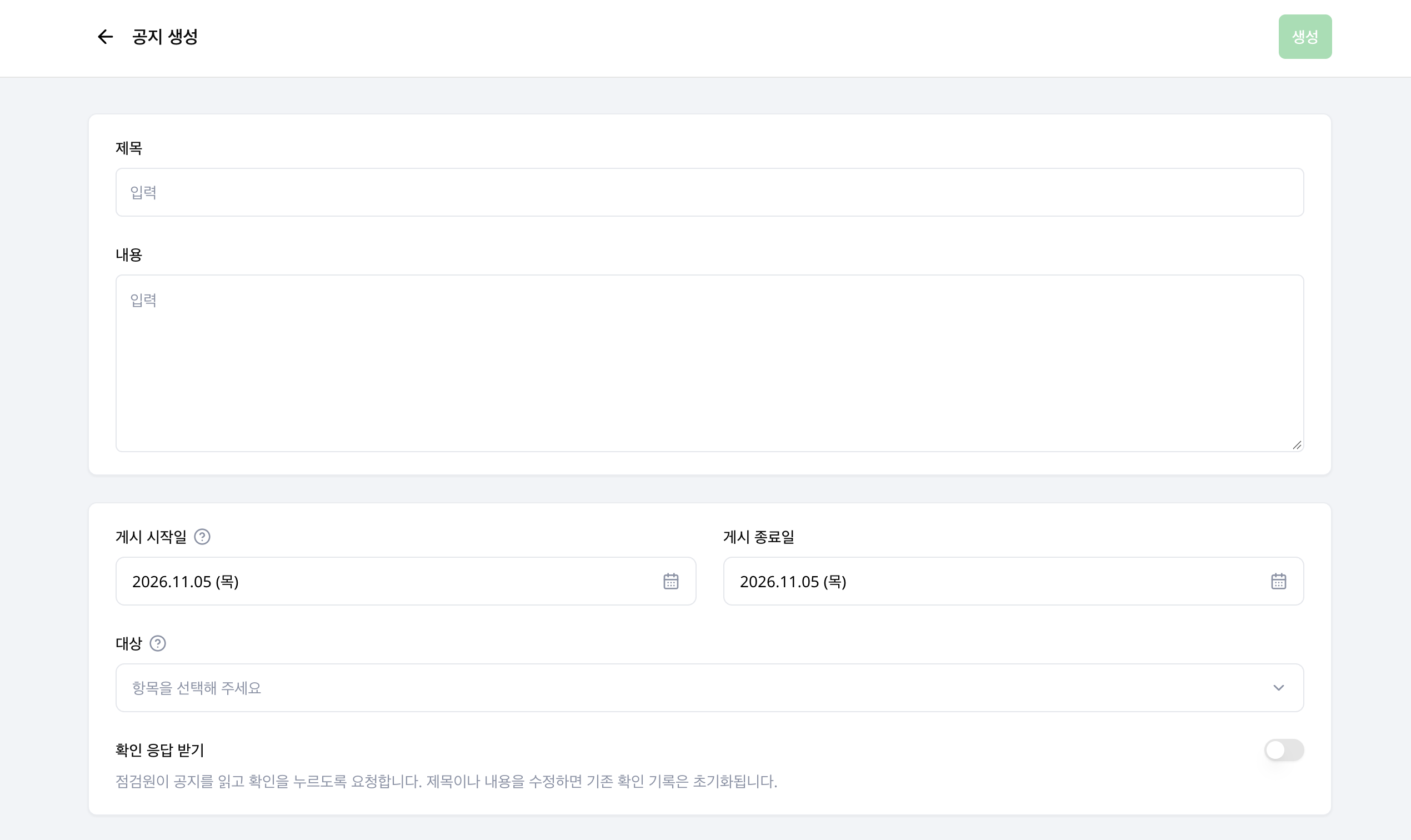
- Choose Create in the list.
- Enter a Title and Content. Both are required, and the title can contain up to 200 characters.
- Select the Start date and End date. Both default to today. The end date must be on or after the start date.
- Under Targets, select at least one group or inspector and apply your selection. Selecting both includes all inspectors in the selected groups and the individually selected inspectors.
- Turn on Require acknowledgement if inspectors need to confirm they have read the heads up. It is off by default.
- Choose Create and confirm in the dialog. The heads up appears in the target inspectors' app during the display period.
For example, to notify an entire work group and one person from another group, select both the group and that inspector.
Check acknowledgements
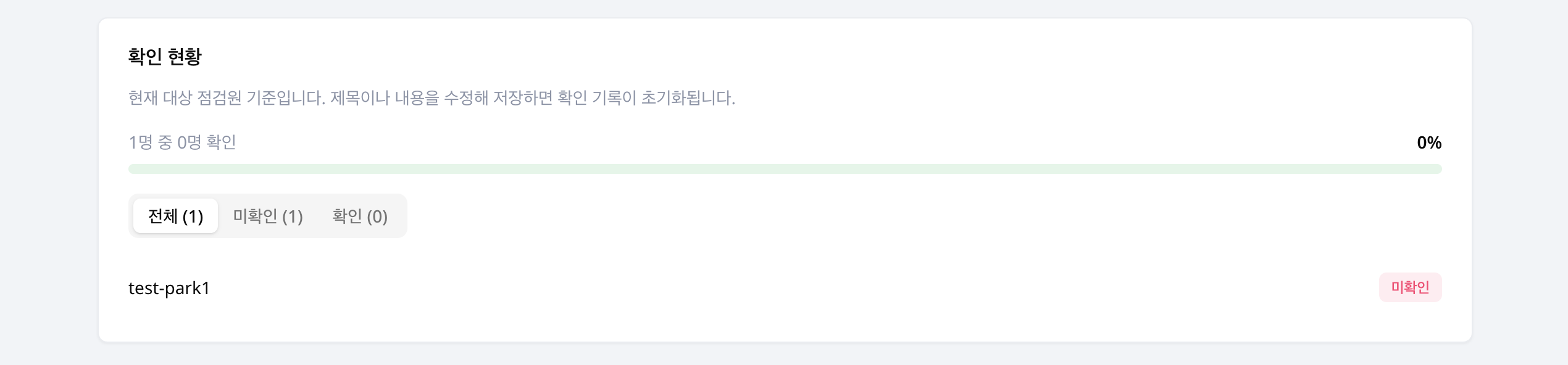
Reopen a saved heads up with Require acknowledgement enabled to view Acknowledgements. Check the acknowledged count and percentage for the current target inspectors, then use All, Not acknowledged or Acknowledged to narrow the list. Inspectors who have acknowledged it also have a confirmation time.
If acknowledgements fail to load, choose the retry button.
Editing the title or content
Saving changes to the title or content resets existing acknowledgements. Check acknowledgement progress again after changing the instructions.
Edit or delete a heads up
Select a heads up in the list or choose Edit from its row action menu. Change the content, dates, targets or acknowledgement setting, then choose Save and confirm in the dialog.
To remove a heads up you no longer need, choose Delete from its row action menu and confirm in the dialog. It will no longer appear in the inspectors' app.