
Manage members
Invite people who need to view and manage operations in Admin. Open Users from the account menu at the bottom of the left sidebar. Tabs also lead to inspectors and groups.
Register field-app users as inspectors.
Check account grades
The Administrators tab under Users manages Admin accounts. This tab name is separate from each account's administrator or general grade. Organization settings, bulk user management and the group matrix require the administrator grade.
Invite a member
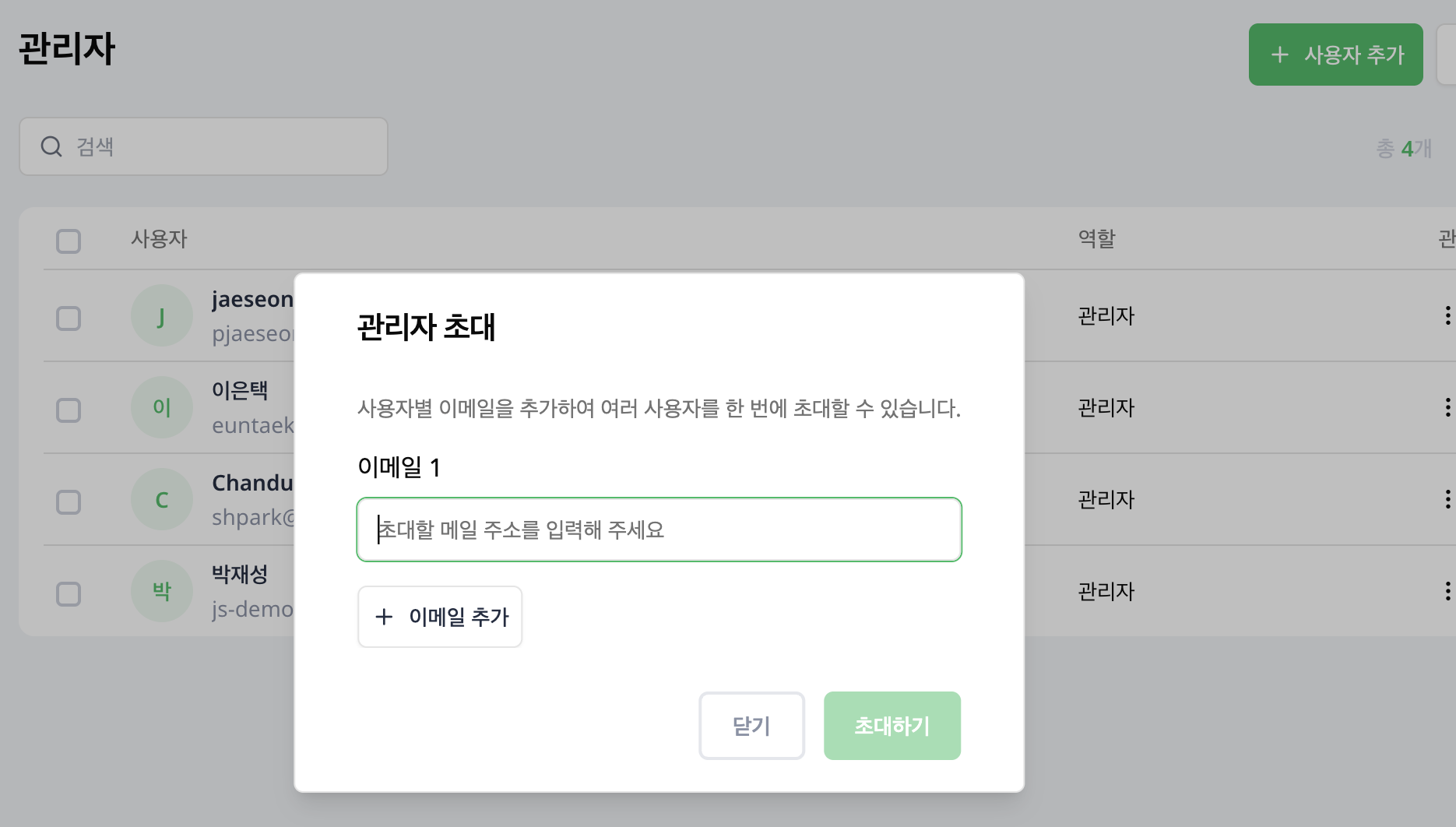
In the Administrators tab, select Add users to open Invite Administrators. Enter the person's email, use Add email for more people, then select Invite. The recipient follows the invitation to connect their account. Confirm the email address and responsibilities first.
Change member information
Open a member to review account details and groups. Administrators can use action menus to assign groups, change time zones and deactivate accounts.
For bulk actions, check the selected people and the intended change. If their existing groups differ, review the group list carefully before saving.
Manage many accounts
- To create or update accounts from a file, select More (⋮) next to Add users, then Add or update users in bulk. See bulk member management for the full steps.
- Use the group assignment matrix to compare people and groups in a table.
Administrator-only pages, including organization settings and bulk management, are restricted for general members.