
Manage inspectors
Create accounts for people who perform inspections in the field app. Open Account menu > Inspectors or the inspectors tab on user pages. Invite people who need Admin access as members.
Register multiple inspectors
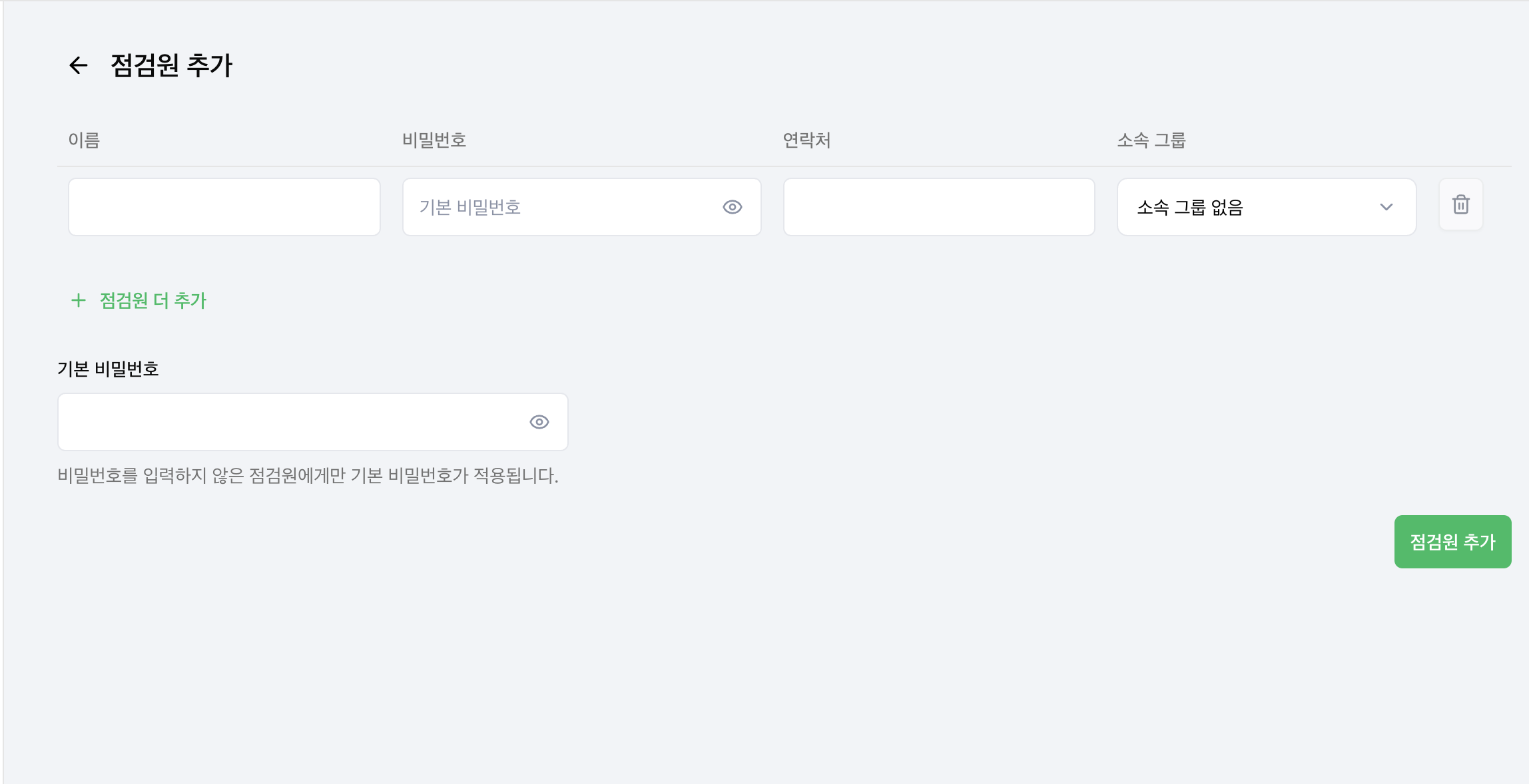
- Open the Add inspectors page.
- Enter the Name and, if needed, the Phone number and Group.
- Enter a Password for each row, or set the Default password at the bottom.
- Use Add another inspector to add more rows.
- Select Add inspectors, then verify the accounts in the list.
A row with a password uses that password. A row left blank uses the default password. Every row needs an effective password.
Manage account details and membership
Open an inspector to review account details and group assignments. Use the assignment matrix to compare or change membership across groups.
Review the organization shared account when providing app login information to field staff.
Deactivate inspectors
When an inspector leaves or stops inspecting for a long time, deactivate them instead. Their past inspection records stay, and you can activate them again at any time. Only Admin-grade accounts can change inspector status.
Change one inspector
- In the inspector list, select the More (⋮) button on the inspector's row.
- Select Deactivate. For an inactive inspector, Activate appears instead.
- Check the inspector in the confirmation dialog and confirm.
Change several inspectors at once
Select inspectors with the checkboxes, and an action bar appears at the bottom of the screen. Choose Deactivate or Activate. If your selection mixes active and inactive inspectors, both buttons appear and each action applies only to inspectors in the matching status.
What changes after deactivation
- They can no longer use the field app. Devices that are already signed in lose access shortly.
- They are removed from incomplete schedules from today onward. If a schedule has them as its only inspector, assign someone else before deactivating.
- Past inspection records stay. In the inspector filter of Inspection records, they appear with an Inactive badge.
Activate again
Activated inspectors can sign in to the app and be assigned to schedules again. Group schedules include them right away, but schedules you assigned to them individually do not come back automatically, so reassign them where needed.
Find inspectors by status
Check the Status column in the list or the inspector's details page. Select the Active inspectors filter above the list to view inspectors by status.
Assign schedules and review results
Select inspectors when creating schedules. Review completion in Inspection status and submitted answers and photos in Inspection records.