
Schedule
Schedules turn facility inspections or personal tasks into recurring work. Facility inspections can use a checklist, environment measurements or inventory movements. Choose the target and inspection method, assign people and completion rules, then set the period and recurrence.
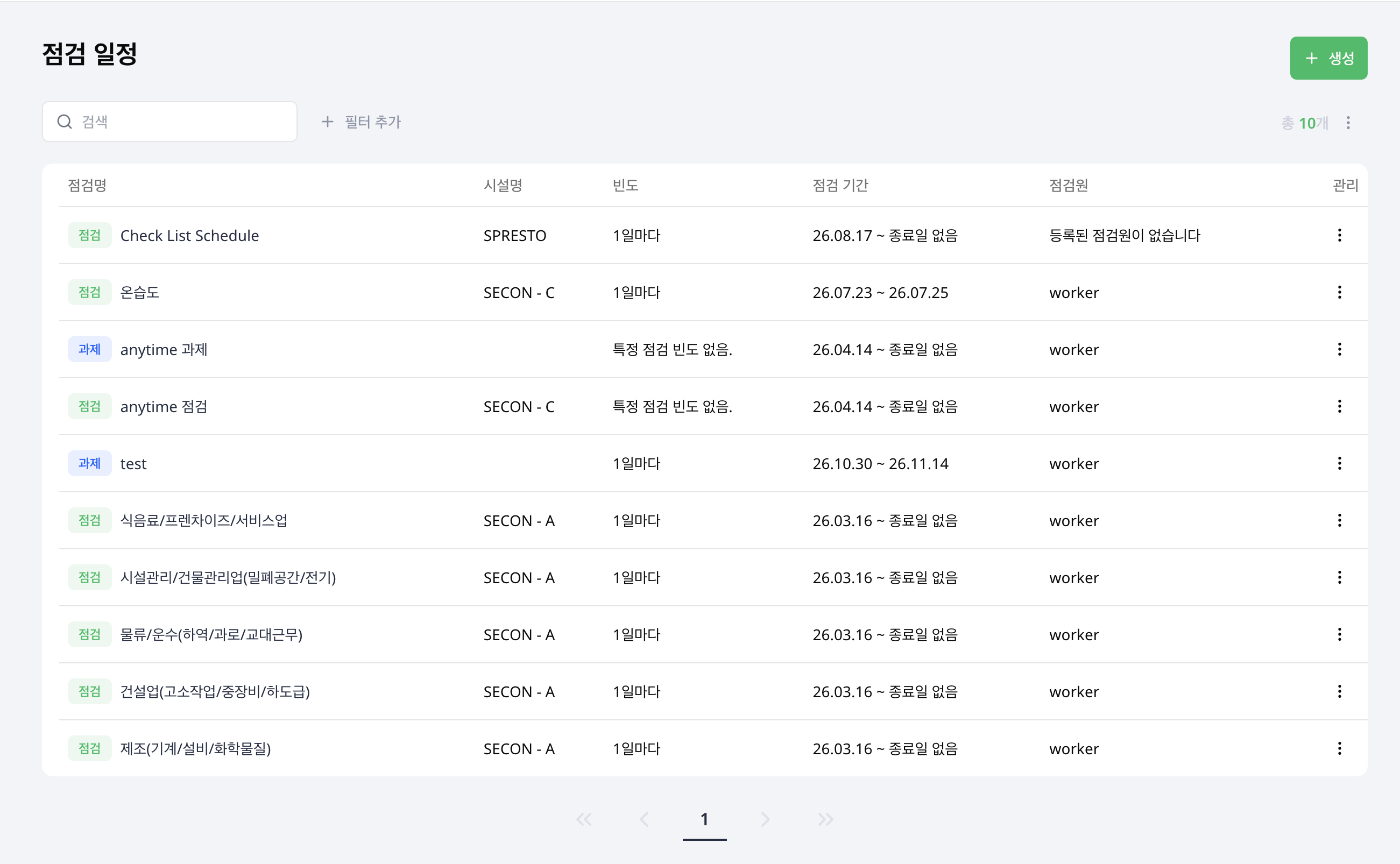
Create a schedule step by step
- Choose the schedule type and title.
- For Inspection, select one facility.
- Choose the inspection method available for that facility. For checklist inspections, also select a checklist.
- Select inspectors directly or choose an assigned group. Assign tasks to individual inspectors.
- For checklist-based facility inspections, review the completion condition. Environment and inventory occurrences complete when one inspector submits.
- Set the start date and an end date if needed.
- Choose the cycle and frequency, review the calendar preview and save.
Choose a schedule type
The schedule type decides whether the work is tied to a facility.
Inspection
Use Inspection for work tied to a facility or equipment. Assign inspectors directly or assign a group.
Examples:
- Daily equipment inspection
- Facility safety inspection
- Regular machine room check
Task
Use Task when the work belongs to an individual inspector and does not need a facility target. This is useful for personal work that still needs a checklist record.
Examples:
- Safety check task
- Opening preparation task
- Individual follow-up work
Select facilities
Facility selection appears only for inspection schedules. Choose the facilities or equipment that inspectors should inspect. Select one facility per schedule. To use the same checklist for another facility, duplicate the schedule and change its facility.
Choose an inspection method
After selecting a facility, the available methods appear. If only checklist inspections are available, the method selector stays hidden.
| Method | Preparation | What inspectors record |
|---|---|---|
| Checklist | Select a checklist | Answers and photos for each question |
| Environment measurement | Enable Environment and register an active measurement item | Readings such as temperature or humidity |
| Inventory management | Enable Inventory and prepare stock items | Incoming and outgoing quantities |
Environment and inventory methods do not use a checklist. If a method is missing, check facility settings and environment items first. Tasks always use a checklist.
You cannot change the inspection method after creating a schedule. Create a new schedule if you need a different method. During creation, changing to a facility that cannot use the selected method resets it to Checklist, so review the method before saving.
Connect a checklist
For checklist inspections, choose a checklist that matches the real work. Review required answers and photo items before connecting it to recurring work.
If the checklist includes numeric range questions, also review the alert recipients of the facility selected for this schedule. Out-of-range readings notify that facility's selected administrators or groups. Even when schedules use the same checklist, their recipients depend on the facility linked to each schedule.
Set the schedule period
Set the first date the inspection should begin. Then decide whether the schedule needs an end date.
- Use a start date when the work should begin from a specific day.
- Add an end date when the schedule is temporary or project-based.
- Leave the end date empty when the schedule should continue until an admin stops it.
Choose the inspection cycle
The inspection cycle controls which dates will be created. After you choose a cycle, use the calendar preview to confirm that the generated dates match the operational plan.
Weekly
Use a weekly cycle when the work should repeat on selected days of the week. If no day is selected, the schedule follows the default cycle settings without limiting it to specific weekdays.
Monthly
Use a monthly cycle for work that repeats by date, by weekday pattern, or by a longer monthly interval.
Monthly schedules can be set in these ways.
- By date
- By weekday
- Every
nmonths from the start date - Without a specific date or weekday selection
No specific cycle
Use this when the work does not need a regular recurrence. This is useful for one-off work or schedules that are managed case by case.
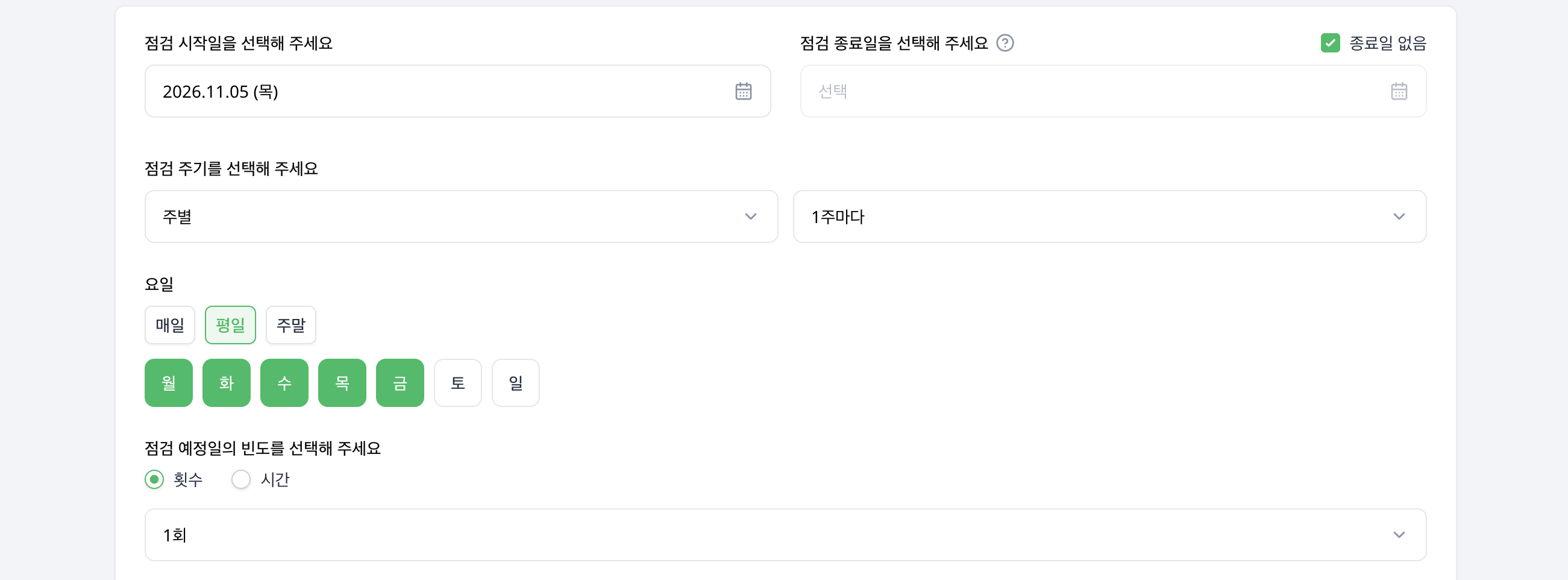
Set the inspection frequency
Frequency decides how often inspectors should complete the work within the selected cycle.
- Use
Countwhen the work should be completed a set number of times. - Use
Timewhen the work should happen at a specific time or time-based interval.
Check the calendar preview after changing the frequency. It is the fastest way to catch a setup that creates too many, too few, or incorrectly spaced inspections.
Assign inspectors
For facility inspections, choose Workers or Group as the assignment method.
- Workers: Select one or more inspectors directly.
- Group: Select one group to assign its current inspectors. Membership changes also affect future schedules.
Switching assignment methods clears the selection from the previous method. Check the inspectors or group again before saving. See Groups to change membership.
For tasks, select individual inspectors or assign all eligible inspectors. Each inspector completes their own task.
Review the completion condition
For checklist-based facility inspections, choose the completion condition that matches the work.
- Only one worker needs to complete: Any assigned inspector can submit to complete it.
- All workers must complete their own: Every assignee must finish their inspection.
When only one inspector is assigned directly, the schedule uses Only one worker needs to complete.
Environment and inventory occurrences complete when one inspector submits. There is no separate completion condition to select, and more records can be added after completion. Review both completion and recorded entries in the scheduled check details.
Review daily completion in schedule details
Open a schedule's details and select a date in the calendar tab. Use the completed / total counts to check progress, then review individual work in the list below.
- Inspections are counted by occurrence. The list below shows one row per inspector assignment and its status.
- Tasks are counted by assignee. Review each inspector's progress on the selected date.
For schedules where one inspector can complete the work, distinguish the inspector who submitted from assignees covered by another inspector's completion. Send a reminder from an assignee's row when its reminder button is enabled.
Open an inspection entry to see that occurrence's workers and records. In the schedule's results, choose completion dates to find records. Environment and inventory schedules list completed occurrences instead of checklist results; open an occurrence to review its linked records.
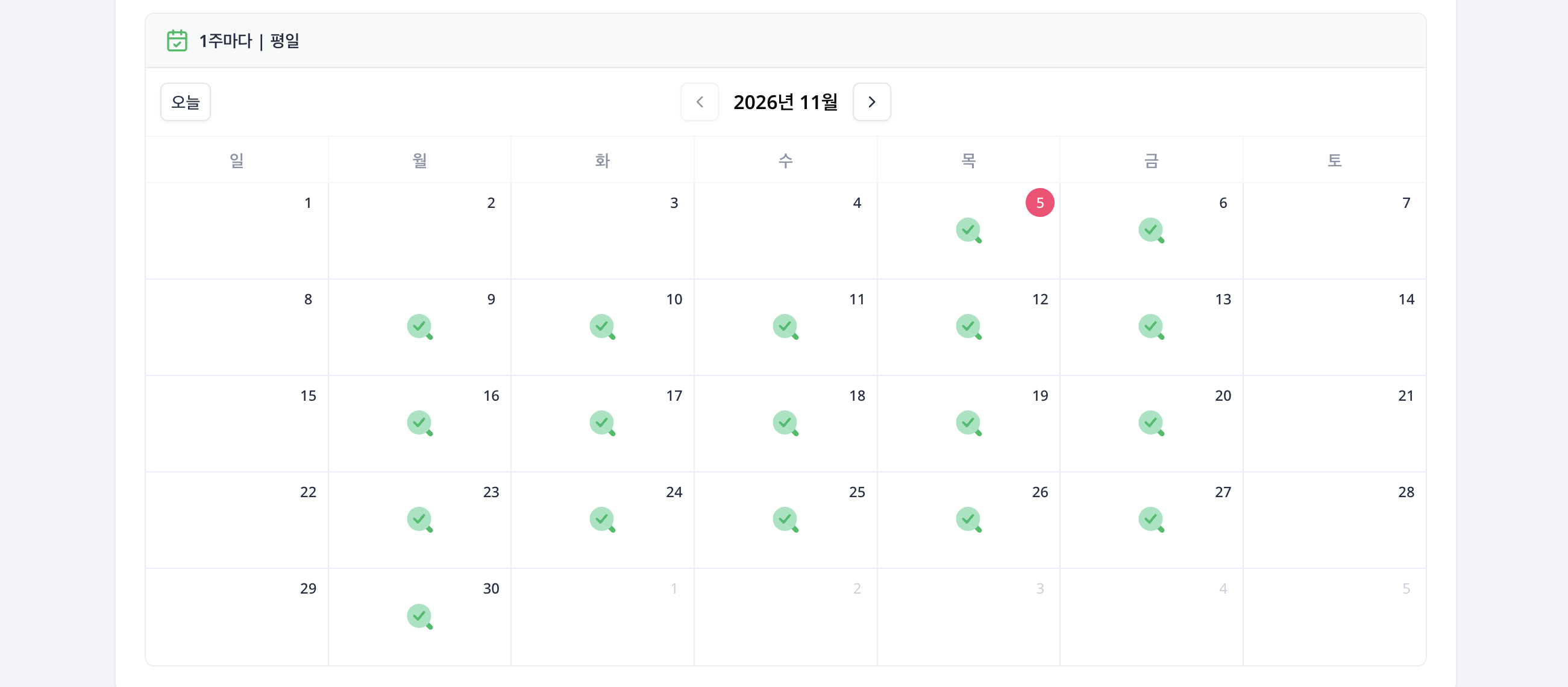
Review the calendar preview
The calendar preview shows the dates created by the cycle and frequency settings. Use it before saving to confirm the schedule is realistic.
Check these points in the preview.
- The first inspection appears on the intended start date.
- The end date, if used, stops future inspections correctly.
- Weekly schedules appear on the intended weekdays.
- Monthly schedules match the chosen date, weekday, or
nmonth interval. - The frequency creates the expected number or timing of inspections.
Final review before saving
Before saving a schedule, review the full setup once more.
- The schedule type matches the work
- Facilities are selected only when the work is an inspection
- The method and checklist or facility items match the assigned work
- The start date and end date are correct
- The recurrence shown in the calendar preview looks right
- The assigned inspectors or group are correct
- The completion condition matches how responsibility should be checked
Edit, duplicate or delete schedules
Use list actions to view, edit, duplicate or delete a schedule. For similar recurring work, duplicate and review its name, facility, checklist, assignees and dates.
When editing, check the existing settings and save guidance on screen. The inspection method cannot be changed. After saving, review the relevant dates in Inspection status. View historical results separately in Inspection records.