
Organization Settings
Manage the organization name and logo, shared language and time zone, and photos in result reports. As an administrator-grade user, open Account menu > Organization Settings.
Change global settings
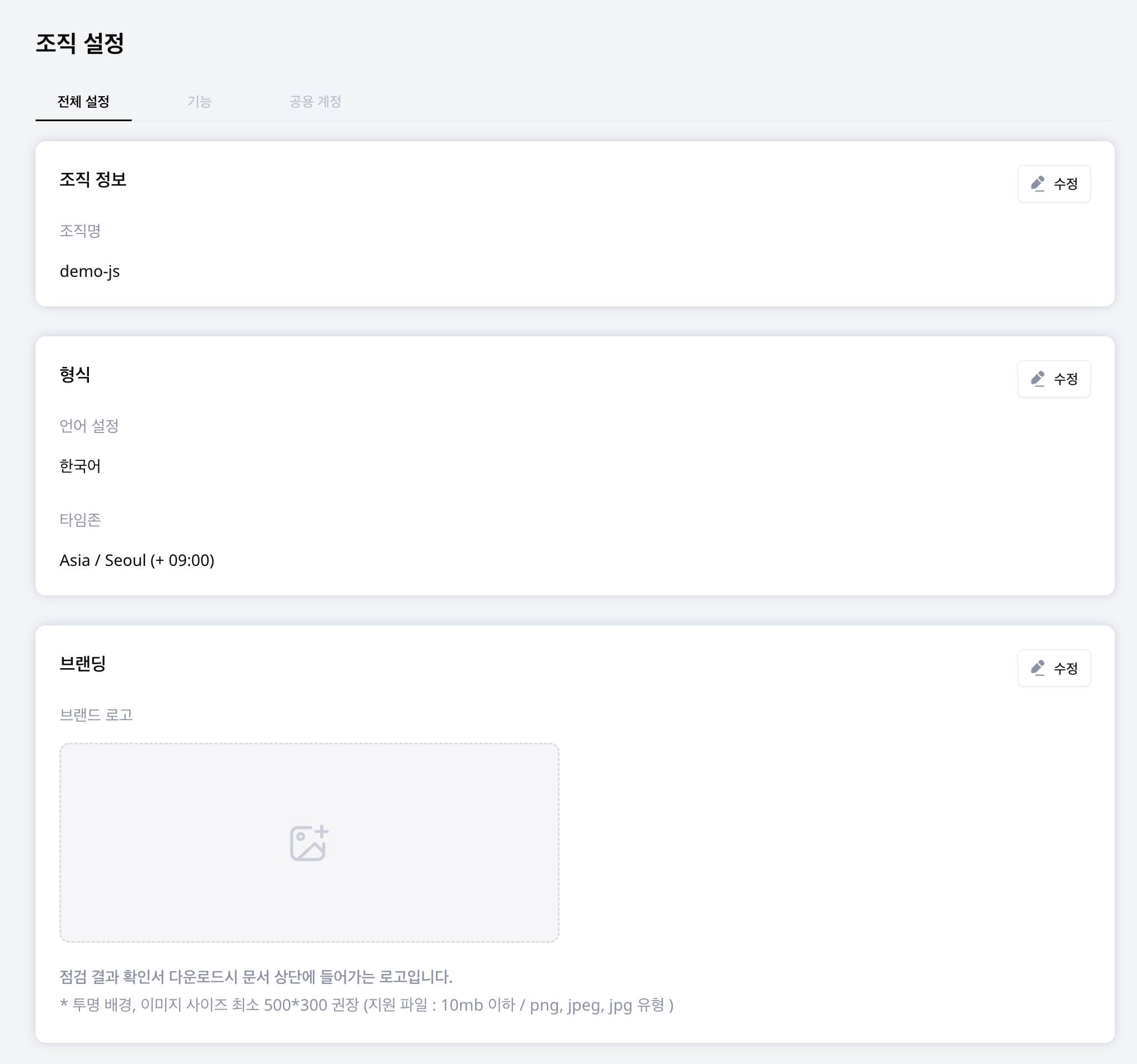
The Global settings tab is split into Details, Formats and Branding. Select Edit in each section to change it.
Use a recognizable organization name. The Brand Logo appears at the top of downloaded inspection result reports. Save edits and review the result.
Language and Timezone define organization defaults. Users who select Use organization language or Use organization timezone in their profile follow these defaults. For teams across regions, agree on the time zone used to review schedules and results.
Include photos in result reports
Use the Features tab to control whether result reports include photos. Enable photos when field evidence is needed, then request a report to review the layout.
Find the organization UUID
The UUID uniquely identifies your organization. Copy it when customer support or an external integration needs an exact organization reference.
Inspector app shared account
Use the Shared account tab to manage the app login ID, password and enabled state. See Shared account for the steps.