
Groups
Create groups to organize members and inspectors by responsibility. Open Account menu > Groups or the groups tab on member pages.
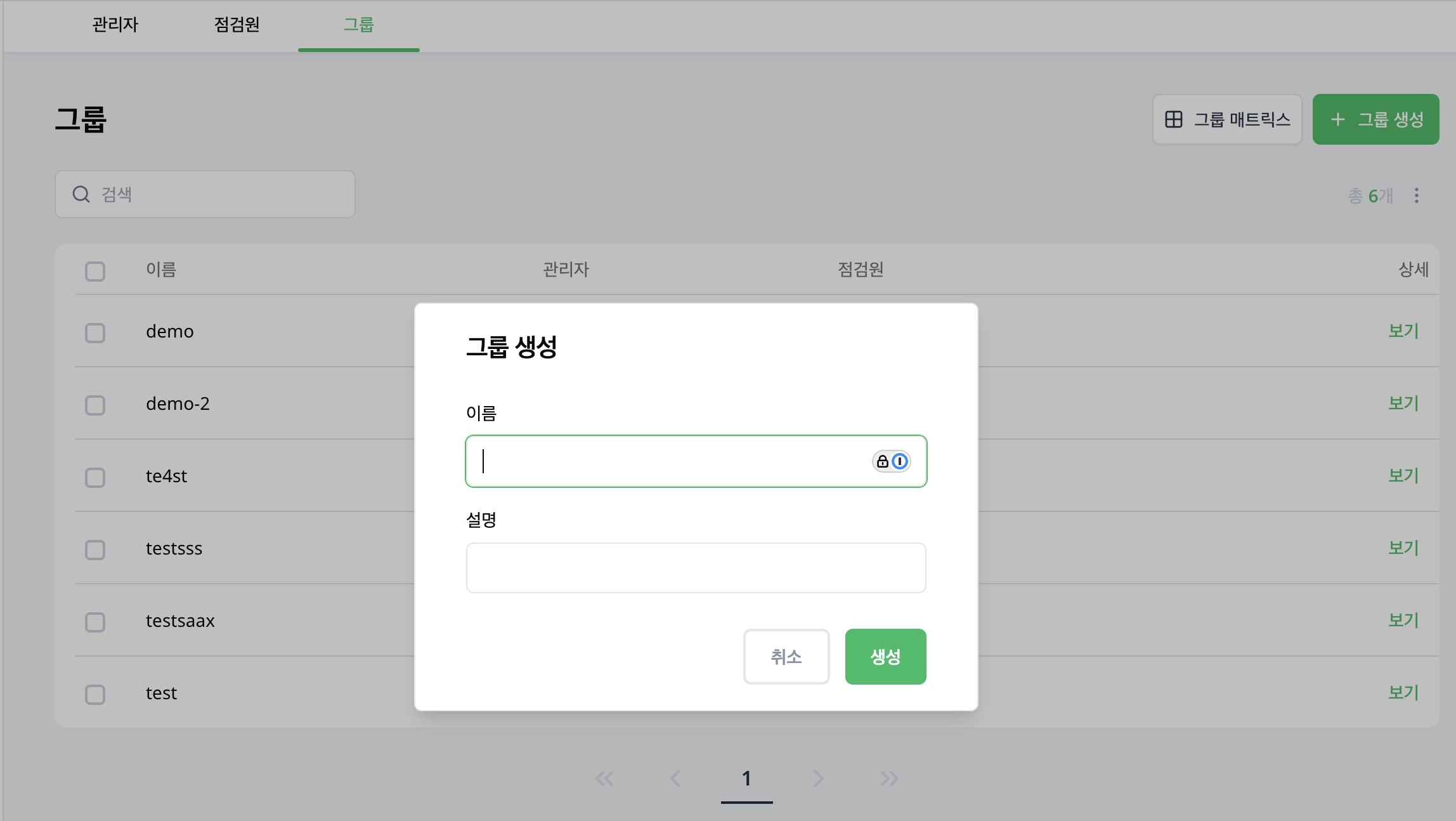
Create a group
As an administrator, select Create group and enter a name and description. Use recognizable names such as Facilities team or Night operations.
Review and assign people
Select View in the group list to open the Settings, Administrators and Inspectors tabs. A person can belong to several groups. Use an Admin-grade account to change membership.
Add people
- Open Administrators or Inspectors, depending on who you want to add.
- Select Add administrators or Add inspectors.
- Search for and select the people, then confirm.
- Check that they appear in the group list.
If some people could not be added, keep the selection and retry. Only the failed additions are retried.
Remove people
Choose More (⋮) > Remove from group on a person's row, check their name in the dialog and confirm. This only removes membership in this group. It does not delete the account or stop app access. Use inspector deactivation to stop app access.
Use the group matrix to compare many people across groups.
Assign inspection schedules to a group
Choose Group as the assignment method in Schedules to assign the group's current inspectors. Membership changes also affect future schedules, so review the schedule's worker status after adding or removing people.
Delete a group
A group cannot be deleted while members or inspectors remain assigned. Assign them elsewhere or remove their assignments first, then delete the group.