
Create a Checklist with AI
If you already have an inspection standard, work procedure, or checklist document, AI can create a checklist draft from it. Upload the file, review the generated checklist, and adjust it before using it in the field.
Prepare the File
AI checklist generation supports PDF and DOCX files. The result is easier to review when the source document clearly explains the inspection standards, items to check, and normal or abnormal conditions.
Before uploading, check that the file includes:
- A clear inspection purpose and target
- The items inspectors should review in the field
- Normal, abnormal, and follow-up criteria
- Item names that inspectors can understand without extra context
If the source document is too broad, the generated checklist may also become too broad. For a checklist that will be used for one facility, area, or task, upload a document focused on that scope.
Open AI Generation
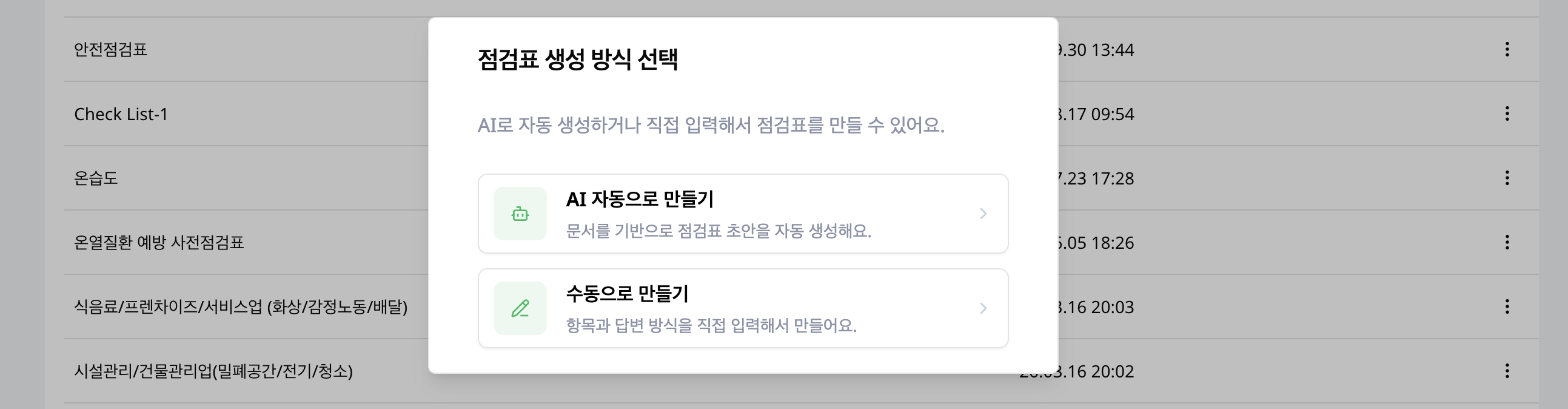
- Go to
Inspection > Templates. - Select
Createat the top of the checklist page. - Choose
Create with AI.
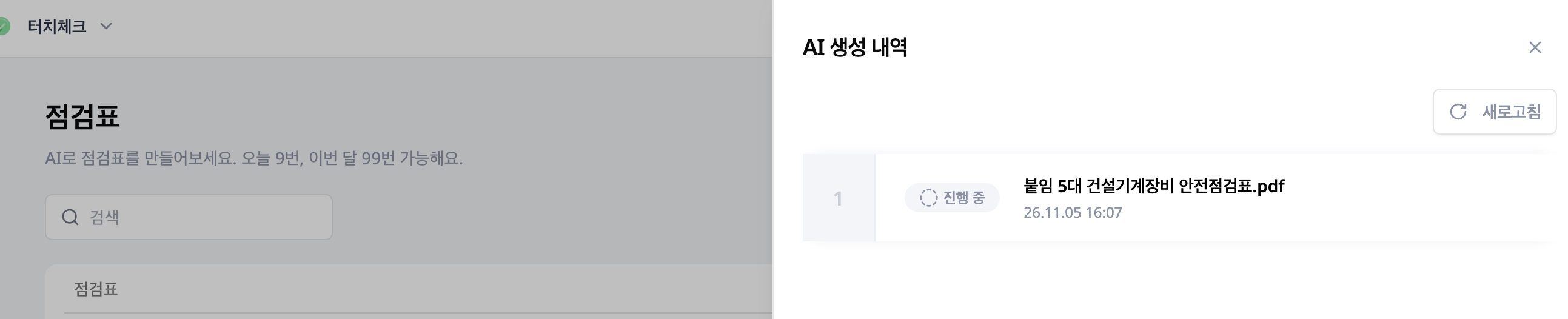
The remaining generation count appears under the checklist page title, for example You have 9 uses left today and 99 this month. Check the remaining daily and monthly count before sending a new request.
Upload a File
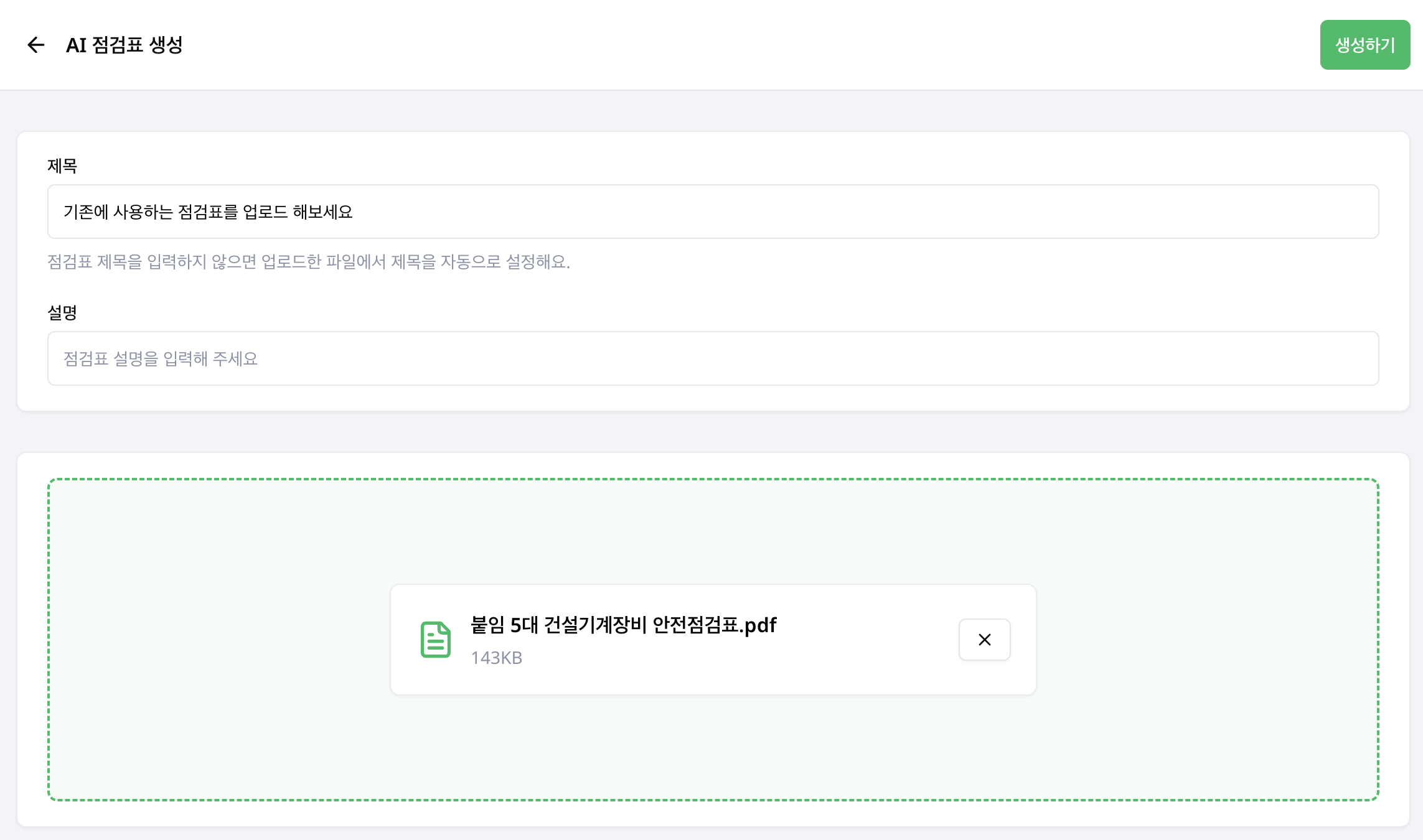
On the AI checklist generation screen, enter the checklist title, description, and file.
The checklist title is optional. If you leave it blank, the title is set automatically from the uploaded file. Use the description to record where or how the checklist will be used, so it is easier to distinguish later.
Select the upload area to choose a file, or drag a PDF or DOCX file into the upload area.
Send the Request
After attaching the file, select Generate. When the request is sent, you return to the checklist page, where you can track the status in the AI generation history.
You cannot send a generation request without a file. If generation does not start, check that the file is selected first.
Check Generation History
Select AI Generation History at the top of the checklist page to open a side panel with the status of each uploaded file. The button appears once you have sent a generation request, and Refresh in the panel loads the latest status.
In Progress: The checklist is being generated from the file.Success: A checklist draft has been created. SelectConfirmto review it.Failed: Generation failed. Check the file and useGenerate Againto retry.
Review the Generated Checklist
Review AI-generated checklists before using them in live operations. The draft may keep wording from the source document or include items that are not needed for the actual field workflow.
Check these points before saving:
- The question order matches the real inspection flow
- Each question type fits the answer inspectors should provide
- Required questions are marked correctly
- Photo use is enabled for questions that need visual evidence
- Inspection guides are specific enough for inspectors to follow on site
- Items from the document that are not needed for this inspection are removed
After reviewing, edit the draft as needed and save it. Saved AI-generated checklists can be connected to schedules in the same way as manually created checklists.